Custom Platform Packages
Custom Platform Packages let you extend Nanitor's inventory collection to SSH-accessible devices that Nanitor doesn't natively support: network appliances, managed switches, firewalls, load balancers, and other network gear. You author a package that tells a collector which commands to run against a device over SSH and how to map the output into inventory fields, then enable a specific collector to load it.
This is an opt-in, self-service feature. You write the package, test it locally with the nandev command-line tool, and deploy it to your own collector. Nanitor does not ship built-in support for these device types.
This is the first phase of a broader effort. SSH-based inventory collection is the initial protocol and use case. We're working with partners to expand coverage over time, both in terms of connection methods (for example, HTTP/API-based collection alongside SSH) and what a platform package can check (for example, compliance and hardening checks in addition to inventory data).
Early-stage tooling
nandev and the platform package schema are under active development (pre-1.0). Command syntax and file formats may change in future releases.
Overview
Custom Platform Packages enable you to:
- Support devices Nanitor doesn't natively collect from: network switches, firewalls, load balancers, routers, access points, and similar SSH-accessible gear
- Define what to collect: hostname, firmware or OS version, serial number, IP addresses, and other standard inventory fields
- Author packages yourself: build, validate, and test packages locally with the
nandevCLI before deploying them - Deploy per collector: enable the feature and load packages independently on each collector
A platform package is a directory containing a platform.yaml manifest plus one or more check files. Packages are authored and tested on your own machine, then copied to a collector's platform packages directory. Once loaded, the collector runs the package's checks over SSH the next time it connects to a matching asset, and the results appear in inventory alongside natively-collected assets.
Custom Platform Packages currently cover inventory and information collection only (for example, hostname, OS version, model, and similar attributes). They are not a mechanism for compliance or policy checks yet; see the note above on what's planned next.
Prerequisites
Before you start, make sure you have:
- Nanitor 7.2.0 or later
- A collector with network reach to the target device
- SSH credentials for the device, added to Nanitor's credential store
- The
nandevCLI installed on your workstation (see below) - Basic familiarity with YAML and regular expressions
- Sufficient permissions to manage collectors and enable features on them
Security and trust model
A platform package is code that runs SSH commands against your devices, using credentials stored in Nanitor's credential store. Keep the following in mind:
- Only deploy packages you wrote or have reviewed: a platform package can run any SSH command the collector's credentials are authorized to execute on the target device
- Keep packages read-only: platform packages are intended for inventory and information collection; write commands or configuration changes are outside the intended use of this feature
- Enabling is opt-in and per collector: loading of local platform packages is disabled by default and must be explicitly turned on for each collector
- Self-authored packages are unsigned: packages you write and copy to your own collector run as-is, without a Nanitor signing or review step. This is distinct from any packages Nanitor may distribute through its own signed content pipeline, which go through a separate review process before distribution
Installing the nandev CLI
nandev is distributed as a pre-built binary via GitHub Releases for:
- macOS (amd64, arm64)
- Linux (amd64, arm64)
- Windows (amd64)
Download the archive for your platform, extract it, and place the nandev binary somewhere on your PATH. Confirm it's working:
nandev --version
Authoring a platform package
A platform package is a directory containing a platform.yaml manifest and one or more check files:
my-platform/
  platform.yaml
  checks/
    sysinfo.yaml
platform.yaml
platform.yaml declares metadata about the package and which check files it uses:
| Field | Required | Description |
|---|---|---|
platform.id |
Yes | Unique identifier, snake_case. Never change after the package is deployed |
platform.name |
Yes | Display name shown in the Nanitor UI |
platform.description |
No | Shown on the collector's Platform Packages tab |
platform.author |
No | Informational only, not authenticated |
platform.version |
Yes | Increment when checks or connector config change |
platform.device_type |
Yes | network or server |
platform.subtype |
No | For example firewall, switch, load-balancer, router, access-point |
platform.connector |
Yes | ssh (the only supported connector currently) |
checks |
Yes | List of relative paths to check files |
The id field is permanent
Once a package has been deployed and used to collect data from assets, changing its id will be treated as a new, unrelated package, orphaning existing devices. Choose an id you're prepared to keep.
Check files
A check file lists asset.query actions. Each action sends one command to the device and extracts values from the output using regex capture groups with a named register. Use standard variable names (hostname, firmware_version, serial_number, ip_addresses_v4, and similar) where applicable, so Nanitor maps them to the right inventory fields automatically.
Network device CLIs generally don't support piping or shell redirection the way Linux does, so send the raw command and extract fields with regex rather than trying to filter output on the device side. Where possible, extract multiple fields from a single command's output to minimize SSH round-trips.
For example, a package targeting a network switch might run show version and show ip interface brief:
id: "my_platform_sysinfo"
title: "System Info"
description: "Collects hostname, firmware version, and IP addresses"

checks:
  - action: asset.query
    command: "show version"
    register:
      - name: firmware_version
        pattern: "Version ([\\w.]+)"
      - name: hostname
        pattern: "hostname (\\S+)"

  - action: asset.query
    command: "show ip interface brief"
    register:
      - name: ip_addresses_v4
        pattern: "(\\d+\\.\\d+\\.\\d+\\.\\d+)"
The full package schema, the complete list of standard variable names, and a step-by-step authoring walkthrough are maintained in the nanitor-platforms repository:
docs/authoring-guide.md: walkthrough of building a package from scratchdocs/schema-reference.md: full reference forplatform.yamland check file fields
Validating and testing
Once you have a draft package, validate its structure before testing against a device:
nandev validate ./my-platform/
Test the package's parsing logic without a real device using mock output:
nandev test ./my-platform/ --mock
When you're ready to test against real hardware, point nandev test at a live device (or a hosts file listing several):
nandev test ./my-platform/ --server <ip> --hosts-file hosts.yaml
If a check isn't matching as expected, --record-session captures the SSH session for later replay, and --mock-file lets you replay a recorded session without reconnecting to the device. To confirm your package is recognized correctly, list all packages nandev can see:
nandev platforms list
Enabling and deploying to a collector
To use a platform package, enable Custom Platform Packages on the collector that will run it, then deploy the package files to that collector.
- Open the collector's details page and select the Platform Packages tab
- Turn on the Platform Packages toggle for that collector (it is off by default)
- Note the package directory path shown on the tab; this is where the collector looks for platform packages on its local filesystem
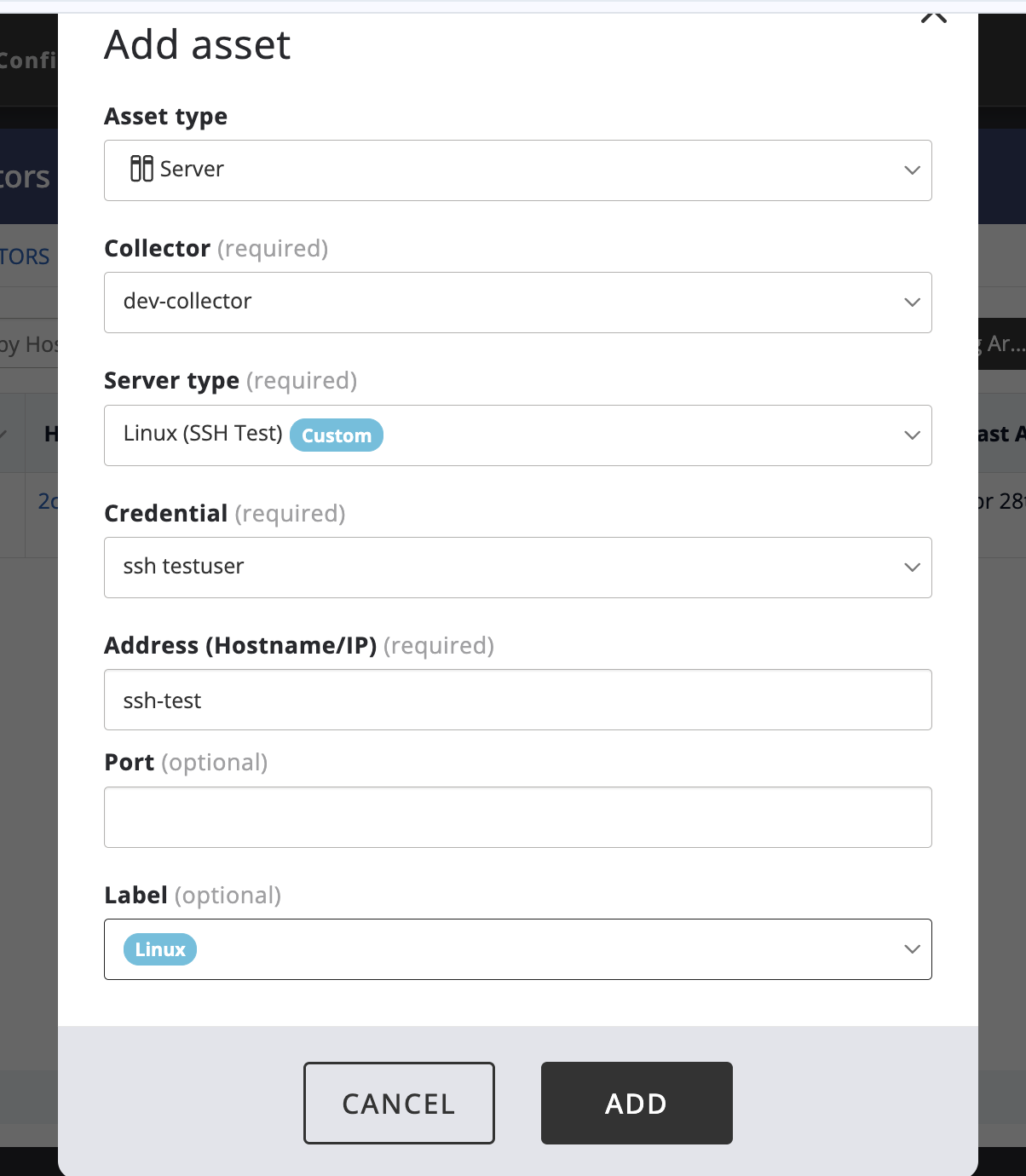
Copy your validated package directory into the collector's platform packages directory. The collector picks up new or changed packages automatically, without a restart.
Once the collector has loaded the package, its device type becomes available when adding an asset for that collector:
- Navigate to Inventory → Add asset
- Select the collector that loaded your package
- Choose the custom device type, marked with a Custom badge
- Select the appropriate credential and enter the device's address
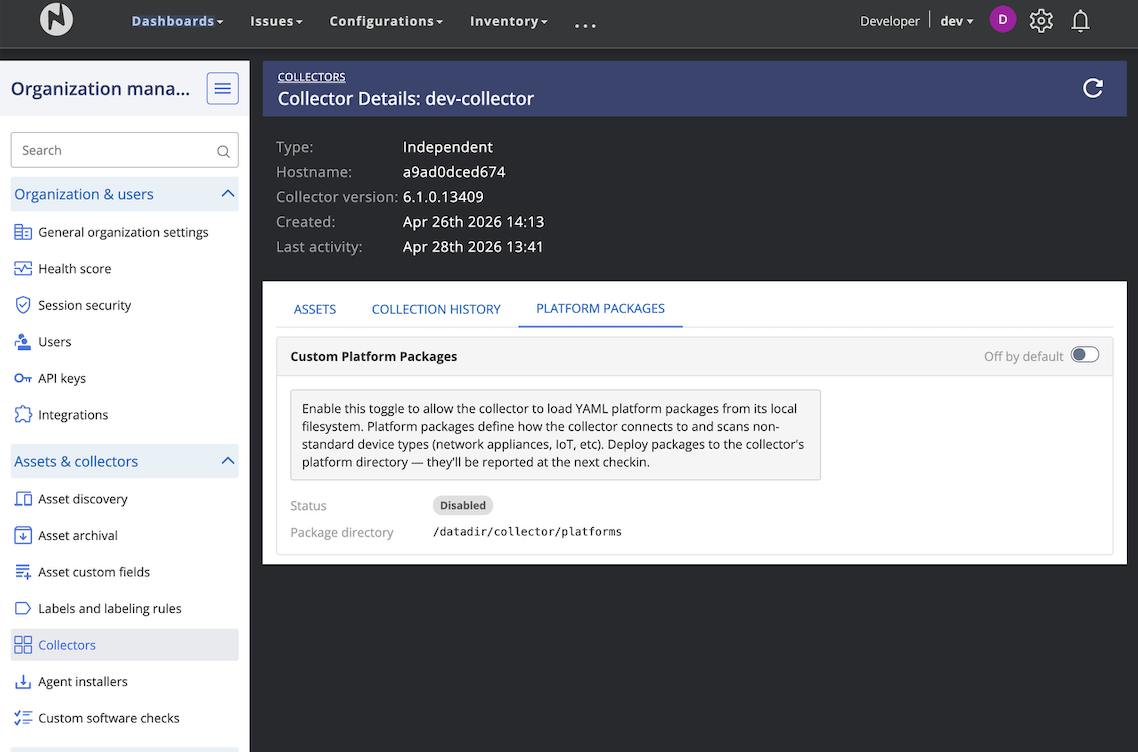
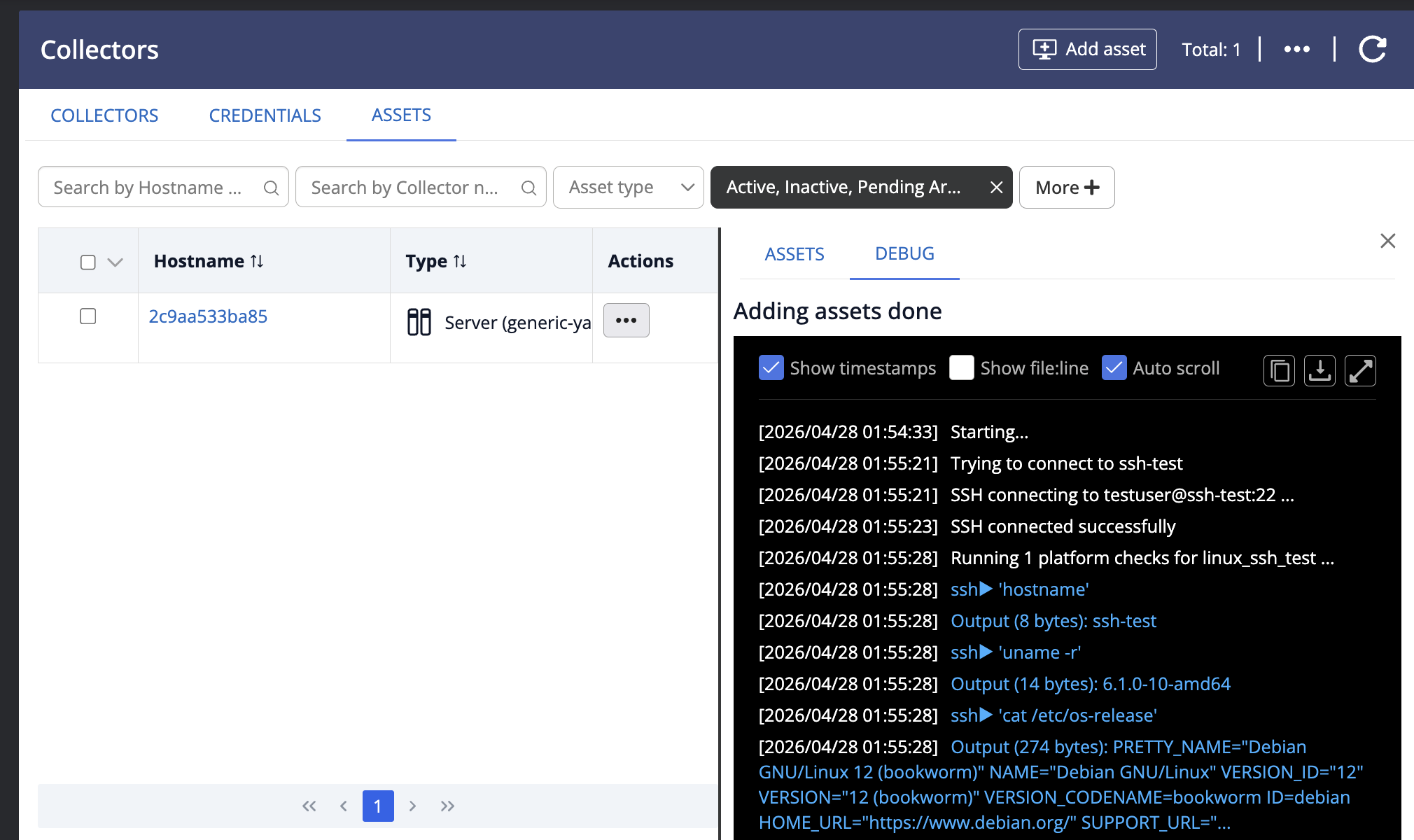
After adding the asset, the collector connects over SSH and runs the package's checks. You can follow this happening live in the collector's debug console, which shows each command executed and its output:
Example package
The nanitor-platforms repository includes platforms/linux-ssh-test/, a minimal package used as a reference and test fixture. It's a good starting point for understanding the file layout and check syntax, but it isn't a production example for a specific vendor device. Use it as a template rather than deploying it as-is.
Troubleshooting
- Package doesn't appear as a device type after deploying it: confirm the package passes
nandev validate, check the Platform Packages tab on the collector for load errors, and verify the package directory path matches what's shown on that tab - SSH connection fails during collection: use
nandev test --record-sessionto capture the session for review, and confirm the credential and address configured on the asset are correct and reachable from the collector - A pattern isn't matching command output: command output can include ANSI escape codes,
\r\nline endings, or extra whitespace depending on the device's shell. Review a recorded session with--mock-fileto see the raw output your pattern needs to match
Contributing and Getting Help
If you'd like to contribute a platform package back to the community, see docs/contributing.md in the nanitor-platforms repository for the review process. Only inventory and information-collection packages are accepted into Nanitor's signed distribution today.
For questions or issues, see the repository's README or contact Nanitor Support.
Related Features
- Custom software checks: Extend Software Inventory with custom detection rules on assets running the Nanitor agent
- Installing Collectors: Learn about collector deployment
- Activity Log: View audit logs for collector and asset changes