NinjaOne integration
NinjaOne is a comprehensive remote monitoring and management (RMM) platform that helps IT teams monitor, manage, and secure endpoints across their organization.
The Nanitor-NinjaOne integration connects your RMM data with Nanitor's asset management, automatically synchronizing device information and enabling enriched visibility into your IT infrastructure.
What this integration provides:
- Automated device synchronization from NinjaOne to Nanitor
- Enriched asset records with RMM data (agent status, last check-in, organization)
- For MSPs: a single NinjaOne connection mapped across a parent organization and any number of suborganizations
- Bi-directional visibility between your RMM and asset management platforms
Prerequisites:
- Administrator access to your NinjaOne account
- Organization Admin role in Nanitor with a global or inheritable role (see Setup in Nanitor below — the integration is configured once at the parent organization)
- NinjaOne deployment with active devices
Overview
This integration uses NinjaOne's OAuth2 Client Credentials flow for secure, machine-to-machine authentication — there is no interactive login or authorization popup. Nanitor uses the credentials you provide to run background synchronization on a schedule.
- Device data flows from NinjaOne to Nanitor, enriching asset records with RMM information
- Automatic synchronization occurs every 24 hours, with manual sync available on-demand
- Organization mapping determines which Nanitor organization each NinjaOne organization's devices are routed to
For MSPs: parent and suborganizations
If you manage multiple customer organizations in Nanitor, NinjaOne credentials are configured once, at the parent organization. Sub-organizations do not configure their own NinjaOne connection.
After connecting, you map each NinjaOne organization to a destination Nanitor organization (the parent org or any sub-org) using the Organization Mapping table. Devices are then routed to the correct Nanitor organization based on that mapping. NinjaOne organizations that aren't mapped are not synchronized.
If you view the NinjaOne integration page from a suborganization, you'll see a read-only view of the connection with a link back to the parent organization's settings — suborganization admins without a global or inheritable role cannot configure or edit the integration.
Setup in NinjaOne
Follow these steps to create credentials that will work with Nanitor.
Step 1: Access API settings
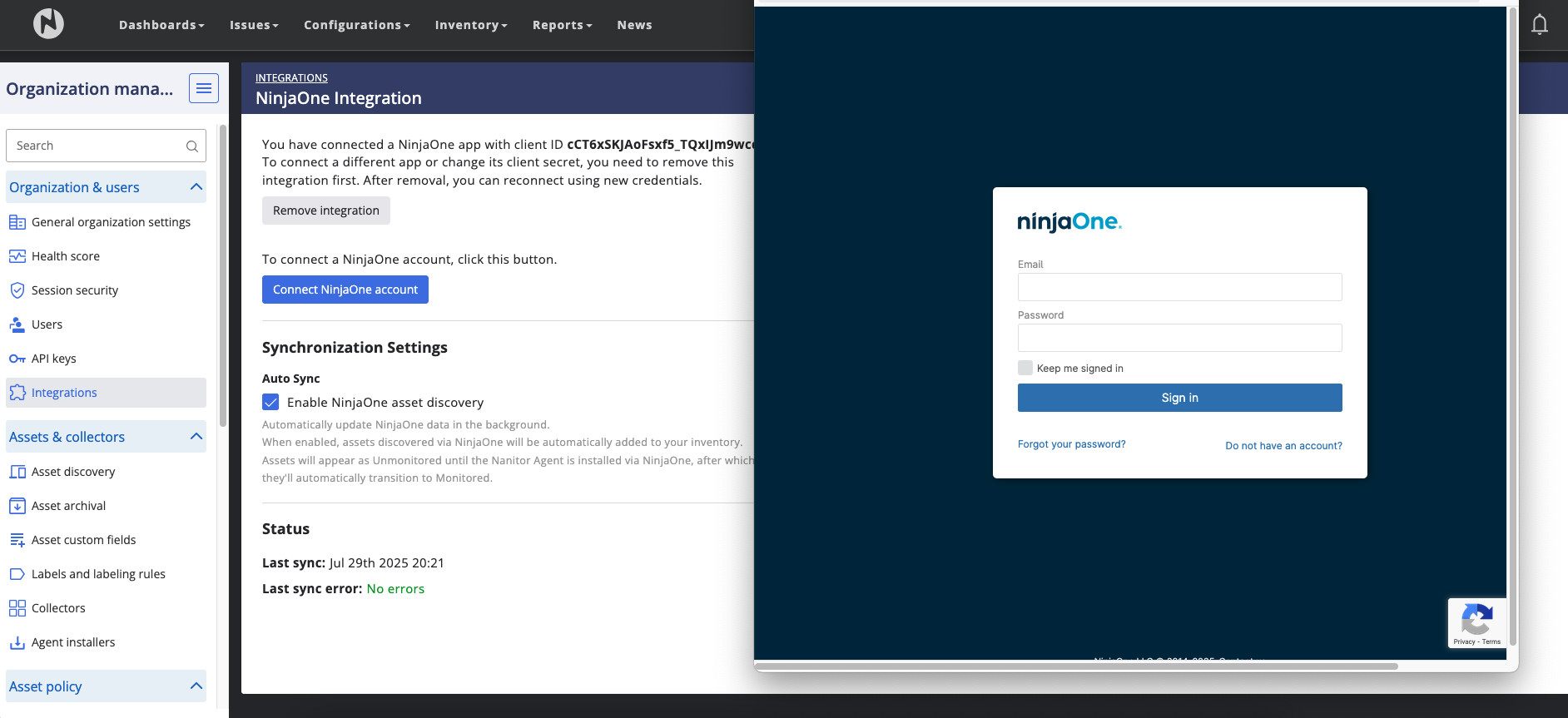
Sign in to your NinjaOne account as an administrator.
Navigate to Administration → Apps → API.
Step 2: Create client application
Click Add to create a new client application.
Configure the application with the following settings:
- Application platform: Select API Services (machine-to-machine)
- Scopes: Check Monitoring, Management, and Control
- Allowed grant types: Check Client credentials
Scope Selection
All three scopes (Monitoring, Management, Control) are required for the integration to function properly. Ensure all are selected.
Step 3: Note your credentials
After creating the application, NinjaOne will display your credentials:
- Client ID
- Client Secret
Copy both values immediately - you'll need them to configure the integration in Nanitor.
Client Secret Security
The Client Secret is shown only once. If you lose it, you'll need to regenerate it from the NinjaOne API settings page.
Setup in Nanitor
Once you have obtained your credentials from NinjaOne, configure the integration in Nanitor. If you manage suborganizations, do this from the parent organization — the connection applies to the parent and all sub-orgs.
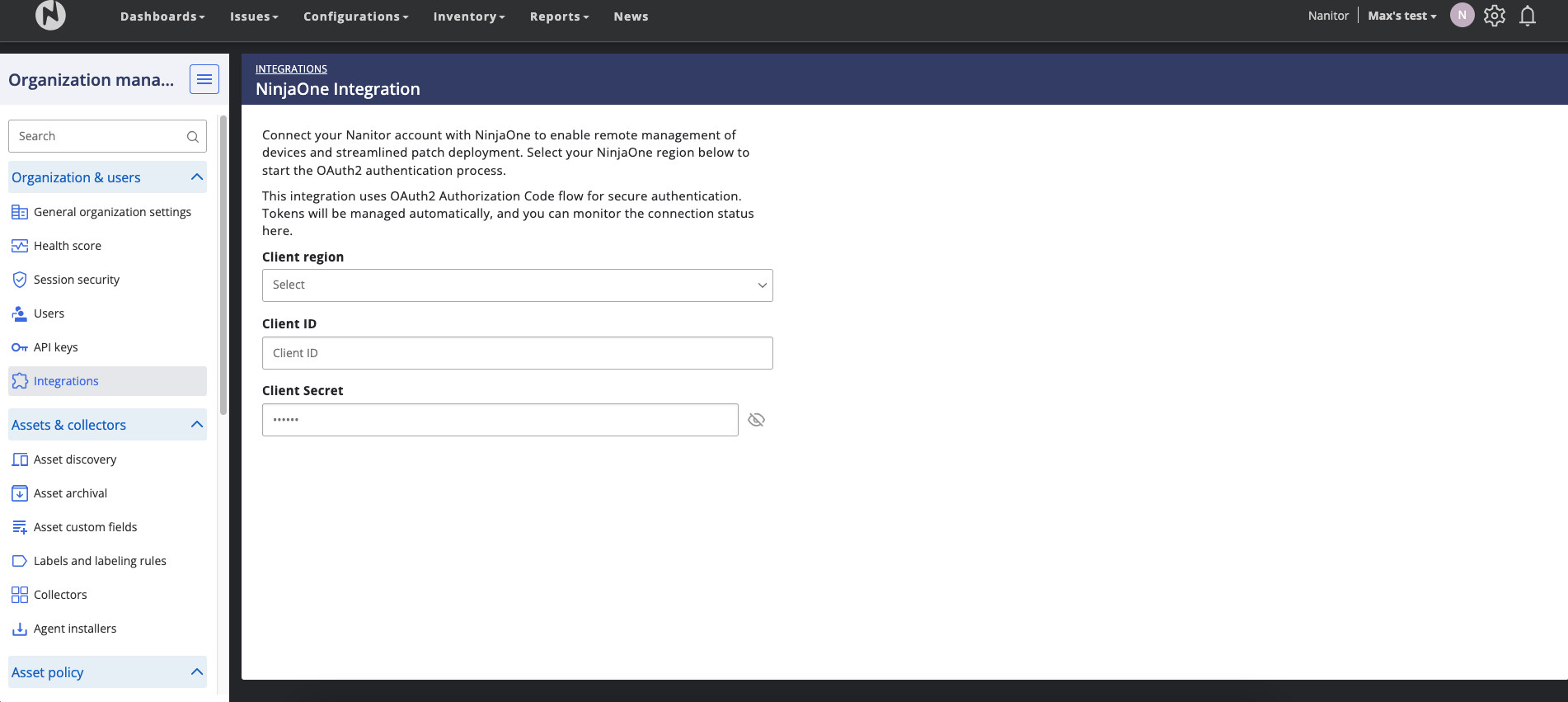
Navigate to Organization Management → Integrations → NinjaOne.
To configure the integration:
- Select your Client region — this must match the NinjaOne data center your account uses:
app.ninjarmm.com (US / Default)us2.ninjarmm.comeu.ninjarmm.com (Europe / Middle East)ca.ninjarmm.com (Canada)oc.ninjarmm.com (Australia / Oceania)
- Enter your Client ID from NinjaOne
- Enter your Client Secret from NinjaOne
- Click Save
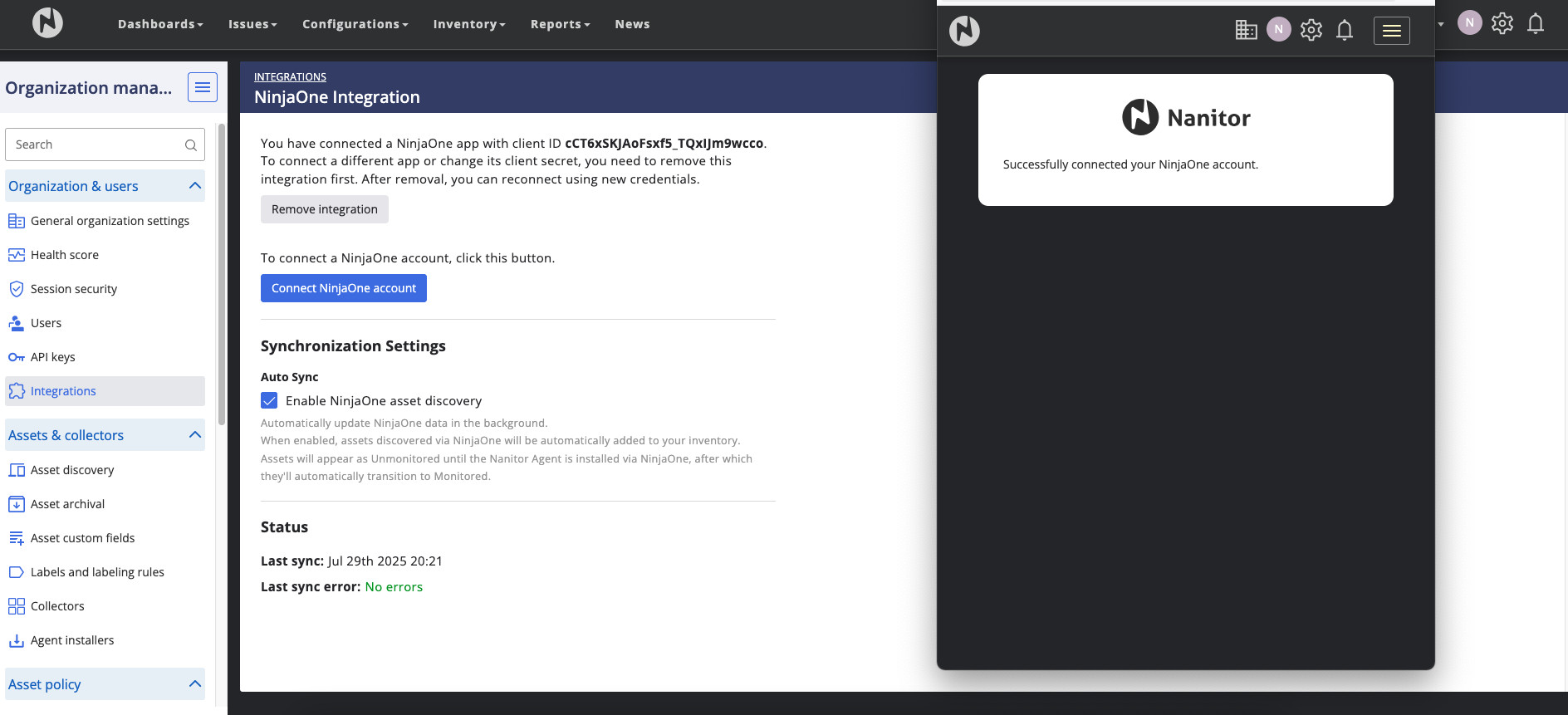
There's no redirect or authorization step — Nanitor authenticates directly using the credentials you entered. After saving, Nanitor begins fetching your NinjaOne organizations for mapping (see below).
Changing credentials
To connect a different NinjaOne app or update credentials, use Remove integration, then configure the integration again with new credentials.
Organization Mapping
After connecting, use the Organization Mapping table to control which NinjaOne organizations sync into Nanitor, and where. Only mapped organizations are synchronized.
The table lists every NinjaOne organization fetched from your account, with columns:
- NinjaOne Organization — the organization name as it exists in NinjaOne
- Nanitor Organization — a dropdown to select the destination organization (the parent org or any sub-org). Choose "- Not mapped -" to leave it unsynchronized.
- Status:
- Suggested — Nanitor pre-filled this mapping based on name similarity, but it has not been confirmed yet. Suggested mappings are not synced until you confirm them.
- Linked — the mapping has been confirmed and is active.
- Not mapped — no destination organization has been selected.
Review any Suggested rows, correct the destination organization if needed, and save to confirm them as Linked.
What gets synchronized
Data flow
From NinjaOne to Nanitor:
- Device inventory (computers, servers, mobile devices)
- Device properties (hostname, serial number, operating system, OS version)
- RMM agent status (version, last check-in time)
- Organization data (used for mapping)
Synchronization frequency: Every 24 hours (automatic), with manual sync available
Asset discovery
Enable "Enable NinjaOne asset discovery" (in the Synchronization section) to automatically add devices discovered via NinjaOne to your Nanitor asset inventory. Discovered assets appear as Unmonitored until the Nanitor Agent is installed on them (for example, deployed via NinjaOne); once the agent checks in, they automatically transition to monitored.
Device matching
Nanitor automatically matches NinjaOne devices to existing Nanitor assets using:
- Serial number (primary matching method)
- Hostname (fallback if serial number unavailable)
When a match is found, the Nanitor asset is enriched with NinjaOne data. Devices without matches appear as new assets in Nanitor's inventory (if asset discovery is enabled).
Monitoring and troubleshooting
Connection status
To check your integration status, navigate to Organization Management → Integrations → NinjaOne. The Synchronization Status section displays:
- Last sync — timestamp of the last successful sync (or "Never")
- Last sync error — the most recent sync error, if any
Manual Sync
If you've just added devices in NinjaOne or updated your organization mapping, click Manual Sync to trigger an immediate sync instead of waiting for the next scheduled run.
Common issues
Problem: Authentication fails after entering credentials Solution: Verify you copied the Client ID and Client Secret correctly from NinjaOne, and that you selected the correct Client region for your NinjaOne account (the region must match where your NinjaOne account is hosted — using the wrong region will cause authentication to fail). Ensure there are no extra spaces at the beginning or end of either value. If the problem persists, regenerate the credentials in NinjaOne and try again.
Problem: A NinjaOne organization's devices aren't appearing in Nanitor Solution: Check the Organization Mapping table — the NinjaOne organization must be mapped to a Nanitor organization and show status Linked. Organizations with status Suggested or Not mapped are not synchronized until confirmed.
Problem: Devices not appearing in Nanitor after sync Solution: Check that your NinjaOne application has all three required scopes selected (Monitoring, Management, Control). Verify the devices are active in NinjaOne and that "Enable NinjaOne asset discovery" is turned on if you want new devices added automatically. Try triggering a manual sync.
Problem: Some devices synced but others are missing Solution: Check that missing devices have accurate serial numbers in NinjaOne. Devices without serial numbers may not match correctly. Verify that all devices belong to a NinjaOne organization that's mapped and Linked.
Problem: As a suborganization admin, I can't configure or see the NinjaOne integration Solution: This is expected — NinjaOne is configured once at the parent organization by an admin with a global or inheritable role. From a suborganization, you'll see a read-only view with a link to the parent organization's settings.
Support
If you continue experiencing issues, contact Nanitor Support with:
- Your Nanitor organization ID
- Screenshot of any error messages
- Timestamp when the issue occurred
- Number of devices in NinjaOne vs. number synced to Nanitor
Technical details
Authentication
This integration uses OAuth2 Client Credentials flow for secure, machine-to-machine authentication:
- Setup: You provide the Client ID, Client Secret, and Client region obtained from NinjaOne. There is no interactive authorization step or redirect.
- Background synchronization: Nanitor uses the client credentials to authenticate directly with NinjaOne's API for each sync, once every 24 hours.
All communication between Nanitor and NinjaOne is encrypted and secure.
Revoking Access
To disconnect the integration, click Remove integration on Nanitor's Integrations page, or remove the application from NinjaOne's API settings. Both methods stop data synchronization.