Organizations and labels
An organization in Nanitor usually corresponds to one company. It has its own assets, users, settings, Issue Diamond and reports. A label is a tag that groups assets inside one organization, for example by site, department or function.
Most companies need one organization and a set of labels. You need more than one organization when you manage several separate companies that must not see each other's data, for example as a managed service provider (MSP).
This page explains how organizations and labels work, how to choose a structure, and how to control who sees which assets. For the settings themselves, see Organization management. For step-by-step setup of several organizations, see Multi-Tenancy Options in the Knowledgebase.
Organizations
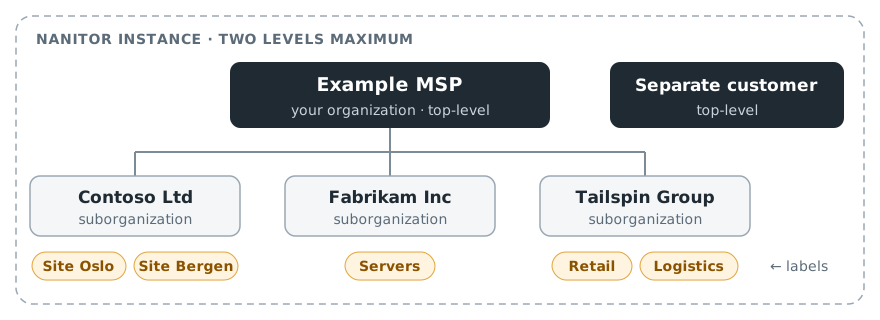
Example: an MSP with three customer suborganizations and one separate top-level customer.
- Two levels. An organization is either top-level or a suborganization of a top-level organization.
- Each organization has its own data. It has its own assets, Issue Diamond, issues, health score, projects and reports. Rechecks are also requested per organization.
- Every asset belongs to exactly one organization. The signup URL used to install the agent decides which one. An asset that ends up in the wrong organization can be moved with Transfer to organization on the asset page or in the asset list. You need permission to manage assets in both organizations.
What a suborganization inherits
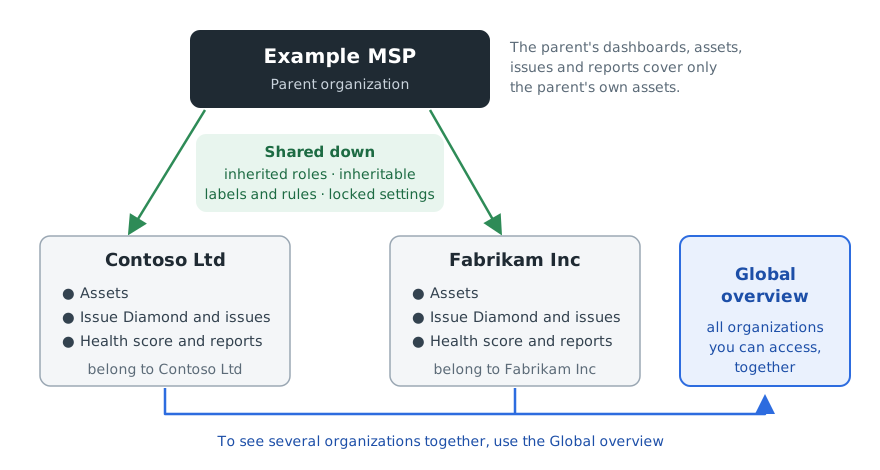
A suborganization gets the following from its parent:
- Inherited roles: users with a role marked Inherited to suborganizations in the parent have that role in every suborganization.
- Inheritable items: labels, labeling rules, notification rules, archival rules, presence checks, custom fields and shared saved filters that are marked as inheritable in the parent.
- Locked settings: Vulnerabilities, Maximum vulnerability issues per product, Automatic agent upgrades and AI features are set in the parent and cannot be changed in a suborganization.
- Benchmark baseline: a new suborganization uses the parent's baseline (Use parent baseline) until you change it. While it is on, Automatically add new rules to baseline and Automatically apply severity and baseline changes also follow the parent.
Sharing goes one way. The parent's dashboards, assets, issues and reports cover only the parent's own assets, so a parent with no assets of its own shows empty dashboards. To see several organizations together, use the Global overview.
Labels
An asset can have several labels. You can filter asset lists and issues by label, and limit scheduled health reports to specific labels (see Health).
Labels also carry asset priority ratings (confidentiality, integrity and availability), which affect how issues are prioritized. See Asset priorities and Asset labels.
To limit what some users see, use a label scope.
Labeling rules
You do not need to label each asset by hand. A labeling rule labels every matching asset, including new ones, based on conditions such as:
- Subnet, IP range or public subnet
- Hostname or FQDN
- Active Directory OU
- Platform or asset type
- Domain controller
Different condition types are combined with AND. Several values of the same condition type, added with +, are combined with OR.
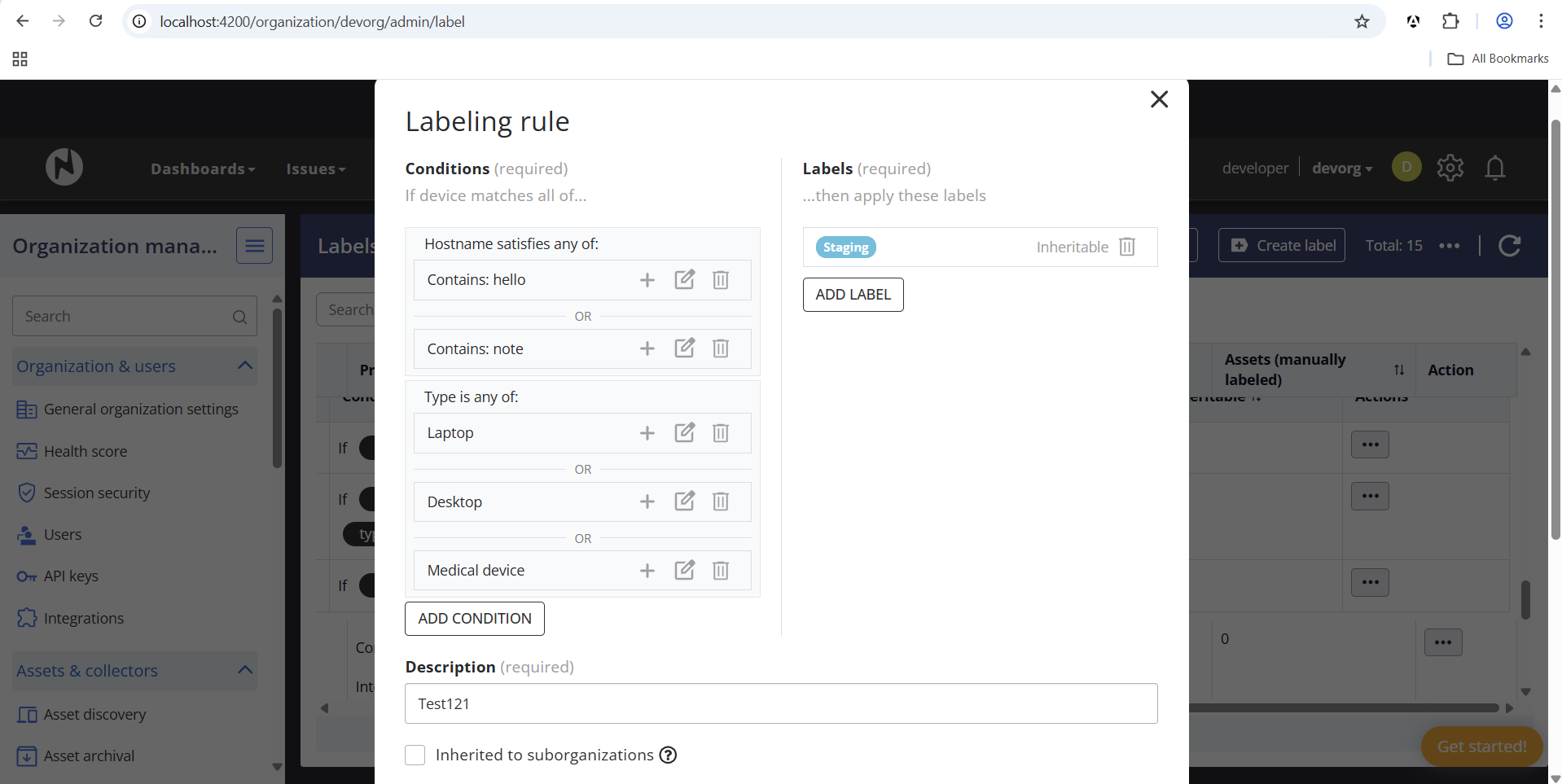
Labels can also be set by hand. For setup, see Labels and Labeling Rules.
Default labels
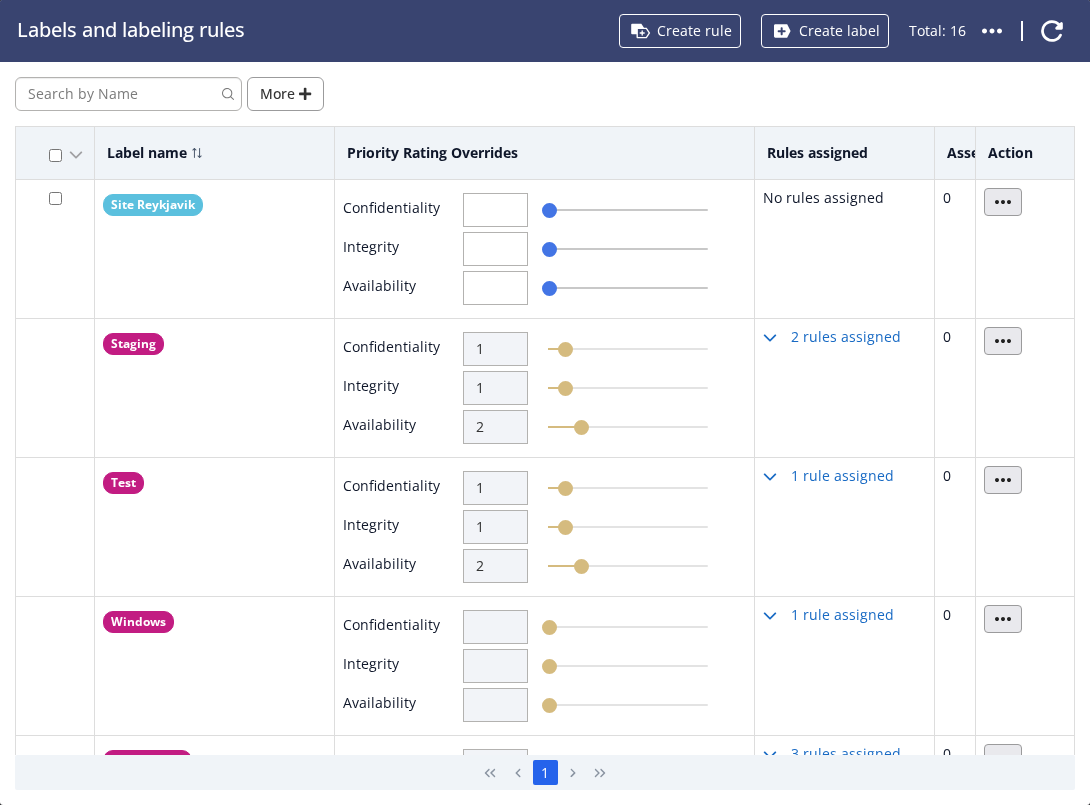
Every new top-level organization starts with 15 labels on its Labels and labeling rules page (gear icon → Organization management → Labels and labeling rules), each with a labeling rule titled "Nanitor default". Most of them also have default priority ratings, so assets are prioritized from the first day. You can change the ratings and rules, and add your own labels.
| Label | Confidentiality / Integrity / Availability | Assigned by |
|---|---|---|
| Cloud Platform | 10 / 10 / 10 | Asset type |
| Domain Controller | 10 / 10 / 10 | Domain controller |
| DMZ | 9 / 9 / 9 | Public subnet |
| Network Device | 8 / 8 / 8 | Asset type |
| Database | 6 / 6 / 4 | Asset type |
| Server | 5 / 5 / 8 | Asset type |
| Workstation | 5 / 5 / 3 | Desktop, laptop or workstation |
| Desktop | 4 / 4 / 3 | Desktop or workstation |
| Laptop | 4 / 4 / 2 | Laptop |
| Production | 4 / 4 / 8 | Hostname contains "prod" |
| Staging | 1 / 1 / 2 | Hostname contains "stage" or "staging" |
| Test | 1 / 1 / 2 | Hostname contains "test" |
| Windows, MacOS, Linux | None | Platform |
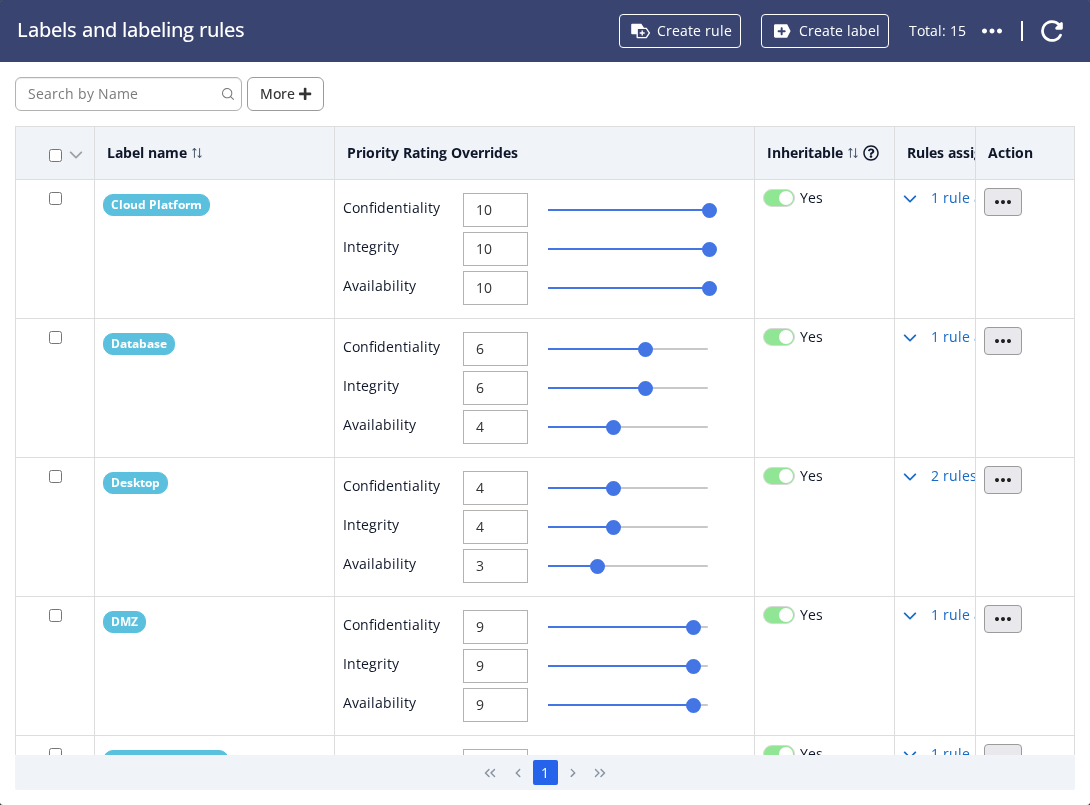
Labels in a parent and its suborganizations
The default labels are created in top-level organizations only, and they are inheritable. A suborganization gets them from its parent, together with any other label or labeling rule that is marked Inheritable in the parent.
In the suborganization, inherited labels are shown in pink and cannot be selected or edited. Their priority ratings and rules can only be changed in the parent, where the change applies to all suborganizations. A suborganization can still create its own labels.
For an MSP, this means that your organization's default labels and ratings apply to every customer. To rate one customer's assets higher, add a label with higher ratings in that customer's organization. A customer's own label cannot lower the ratings set by your labels, because an asset with several labels gets the highest rating of its labels.
A label that a suborganization created can be made available to the parent and all its suborganizations with Promote label in the parent. To find it, turn on More → Include child labels in the parent's label list. Promoting cannot be undone.
Global overview
The Global overview covers every organization you have access to. It is the first item in the Dashboards menu for users who have access to more than one organization. It shows one Issue Diamond for all those organizations together, the organizations and assets at highest risk, projects in progress, and issue search, asset search and issue trackers across organizations.
It is a working view across everything you have access to, not a report for one group of organizations. Health scores and scheduled reports stay per organization. See Global overview dashboard.
Choosing a structure
The rule of thumb is one organization per company, and labels inside the company.
| You need | Use |
|---|---|
| A separate Issue Diamond, health score and reports per company | An organization per company |
| Staff of each company who can only see their own company's assets | An organization per company |
| Different settings per company (benchmarks, notification rules, integrations) | An organization per company |
| A different benchmark baseline or settings per service package | A top-level organization per package, with the customers under it |
| To split one company's assets by site, department or subsidiary | Labels, assigned by labeling rules |
| To set asset priority, or mark assets as billable or non-billable | Labels |
| Some users who only see some of an organization's assets | Labels with a label scope on those users |
| One view across all organizations | The Global overview |
| Isolation that the instance operator cannot cross | A separate instance |
Three ways to separate assets
The three options go from the lightest to the strongest separation.
-
One organization with labels
Use for: one company, including its sites, departments and subsidiaries.
You get: one signup URL, one Issue Diamond and one set of reports, with filtering by label. Label scopes can narrow what some users see.
Not for: separating different companies.
-
Separate organizations
Use for: different companies, such as an MSP's customers.
You get: separate assets, reports, settings and user access for each organization. Users and API keys only reach the organizations they are granted.
Shared: one Nanitor instance and one database.
-
Separate instances
Use for: strict legal or regulatory isolation, or when the operator of a shared instance must not reach the data.
You get: separate servers, databases and administrators.
Trade-off: separate logins, licenses and URLs to manage.
Questions to help you choose
1. Who needs to see what? If everyone with access may see all of the company's assets, one organization is enough. If some people should only see part of it, such as a contractor for one site, give them a label scope. Create separate organizations when different companies must not see each other's data.
2. Do you want one overall report? An organization has one Issue Diamond, one health score and one set of reports. If the company wants one overall picture with filtering by site or department, use one organization with labels.
3. How much deployment do you want to manage? Each organization has its own signup URL. One organization means one signup URL in your deployment tool (GPO, Intune, RMM or scripts), and labeling rules sort the assets. Fifteen organizations mean fifteen signup URLs and the risk of installing agents into the wrong one.
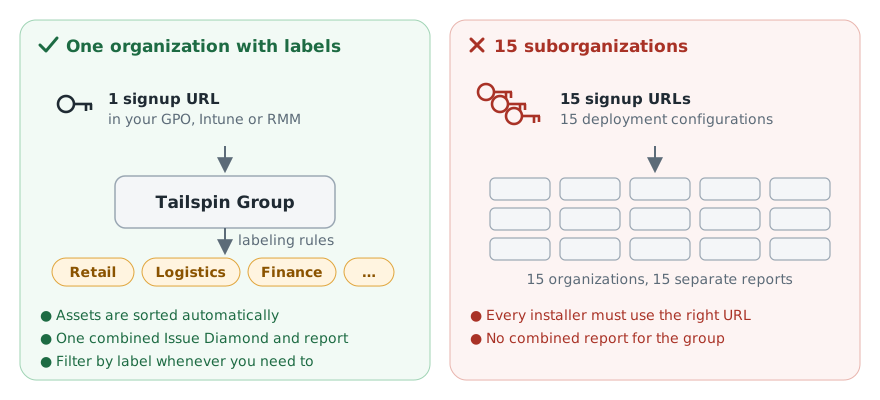
4. Do parts of the company need different settings? Benchmarks, notification rules and integrations are set per organization, although a suborganization can use its parent's baseline and inheritable rules. Create separate organizations for parts of one company only when they really need different settings.
Controlling who sees what
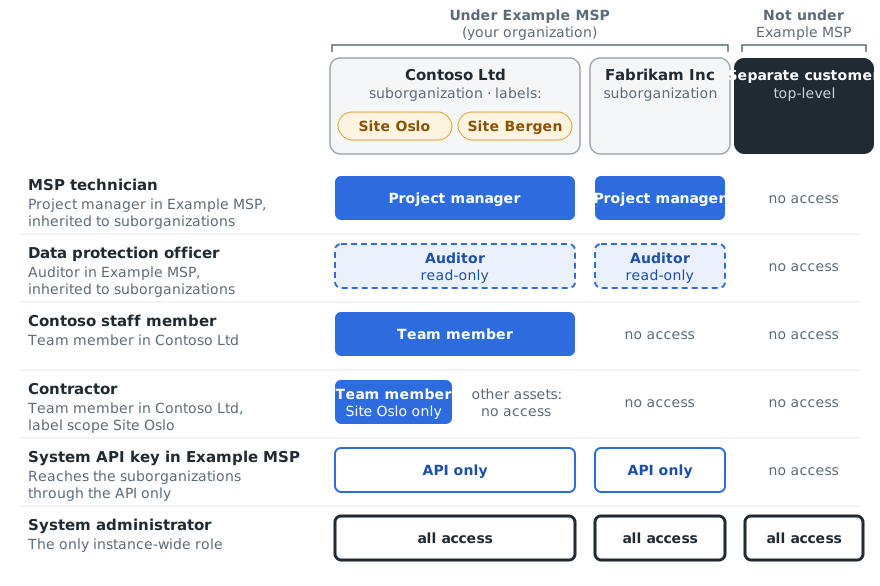
Each row is a person or API key, and each column is a customer organization. Example MSP is your own organization. Orange tags are labels inside Contoso Ltd.
Roles across organizations
| Person | Set up as |
|---|---|
| Staff who work on all suborganizations | A role in the parent organization with Inherited to suborganizations enabled |
| Someone who needs read-only access to all suborganizations, such as a data protection officer | The Auditor role in the parent organization with Inherited to suborganizations enabled |
| Staff of one company | A role in that company's organization only |
| Staff who should only see one site or subsidiary | A role in that organization with a label scope |
Inherited to suborganizations is available on roles in a top-level organization. Inherited roles only reach that organization's suborganizations. For another top-level organization, add the user to that organization separately.
Label scopes
Project managers, Team members and Auditors can be limited to assets with specific labels (a label scope). See How do I create a new user in my organization?.
- Organization administrators and API keys are never limited by a label scope.
- An inherited role cannot have a label scope.
- A label scope follows the labels. Anyone who can change labels or labeling rules in the organization changes what a scoped user sees.
- Users with a label scope cannot change organization-wide data, such as benchmarks, labels or subnets.
System administrators and API keys
- System administrators can see every organization on the instance. On an instance hosted by an MSP, these are the MSP's administrators.
- An API key belongs to one organization. A key created in a parent organization can also read, and with write access change, the data of all its suborganizations through the system API.
If you are an MSP
Most MSPs start with one suborganization per customer under their own organization, and use labels inside each customer for sites, departments and subsidiaries. Give your staff a role in your organization with Inherited to suborganizations enabled, and use the Global overview to work across all customers.
The layouts below are examples, not the only options. Combine or adapt them to match how you sell and run your service.
One suborganization per customer
This is the layout in the example under Organizations.
- Your own staff get an inherited role in your organization once, and have that role in every customer organization.
- Each customer has its own Issue Diamond, health score and reports.
One parent per service package
If you offer service packages with different settings, for example different hardening levels, you can create one top-level organization per package and put each customer under the package it has bought. Each package organization sets its benchmark baseline and locked settings once, and every customer under it follows them through Use parent baseline and inheritance.
A package organization usually has no assets of its own, or only test assets that you use to try changes to the package's baseline before your customers get them.
- Your staff need a role with Inherited to suborganizations in each package organization, because inherited roles only reach the suborganizations of the organization where the role is set.
- The Global overview still shows all organizations your staff have access to.
- To move a customer to another package, change its parent. See Change the parent later in the Knowledgebase.
Customer groups: one organization with labels
When a customer has several subsidiaries or sites, create one organization for the group under your organization, and use a label per subsidiary, assigned by a labeling rule (for example by subnet or AD OU). This avoids one signup URL per subsidiary, as shown under How much deployment do you want to manage?.
This gives the group one combined Issue Diamond and report, while you can still filter by subsidiary. Your inherited roles still work. Subsidiary staff can get a label scope so that they only see their own subsidiary.
Why not suborganizations for the subsidiaries?
Because there are only two levels, the group would then have to be a top-level organization, next to your own organization instead of under it. Your staff would need roles there separately, nothing would be inherited from your organization, and the group would have no combined view. Use this layout only when the subsidiaries really need separate settings or separate Issue Diamonds.