Microsoft Intune integration
Microsoft Intune is a cloud-based endpoint management platform that helps organizations manage devices, enforce compliance policies, and secure access to corporate resources.
The Nanitor-Intune integration connects your device management data with Nanitor's asset management, automatically synchronizing device information and providing visibility into Intune compliance status alongside Nanitor's vulnerability and configuration data.
What this integration provides:
- Automated device synchronization from Intune to Nanitor
- Compliance visibility per device (Compliant / Non-Compliant / In Grace Period / Unknown)
- Automatic device matching based on serial numbers, Azure AD Device IDs, MAC addresses, and hostnames
- Compliance policy details and check-in timestamps on device detail pages
- Optional Intune Compliance column in the Asset Inventory
Prerequisites:
- An Azure AD App Registration with the required Microsoft Graph API permissions
- Organization Admin role in Nanitor
- Microsoft 365 Business Premium, E3, or E5 license with Intune
Overview
This integration uses OAuth2 client credentials to securely connect Nanitor with Microsoft Intune via the Microsoft Graph API. The integration provides:
- Combined device and compliance synchronization every 6 hours (default), with manual sync available on-demand
- Automatic device matching links Intune devices to existing Nanitor assets using serial number, Azure AD Device ID, MAC address, or hostname
Setup in Azure
Follow these steps to create an Azure AD App Registration with the required permissions.
Step 1: Create an App Registration
- Sign in to the Azure Portal as an administrator
- Navigate to Azure Active Directory → App registrations
- Click New registration
- Enter a name (e.g., "Nanitor Intune Integration")
- Select Accounts in this organizational directory only
- Click Register
Step 2: Note your credentials
After creating the registration, note the following values from the Overview page:
- Application (client) ID
- Directory (tenant) ID
Step 3: Create a client secret
- Navigate to Certificates & secrets → Client secrets
- Click New client secret
- Enter a description and select an expiration period
- Click Add
- Copy the Value immediately
Client Secret Security
The client secret value is shown only once. If you lose it, you'll need to create a new one.
Step 4: Configure API permissions
Navigate to API permissions and add the following Microsoft Graph application permissions:
Required permissions:
| Permission | Type | Purpose |
|---|---|---|
| Device.Read.All | Application | Read Azure AD device records |
| DeviceManagementManagedDevices.Read.All | Application | Read device information |
| DeviceManagementConfiguration.Read.All | Application | Read compliance policies |
| DeviceManagementApps.Read.All | Application | Read app management data |
| SecurityEvents.Read.All | Application | Read security score data |
All five permissions are required. Nanitor checks each one individually and reports Connected only if every permission is granted; if any single permission is missing, the connection status shows Failed.
After adding the permissions, click Grant admin consent for your organization.
Setup in Nanitor
Once you have your Azure credentials, configure the integration in Nanitor.
Navigate to Organization Management → Integrations → Microsoft Intune.
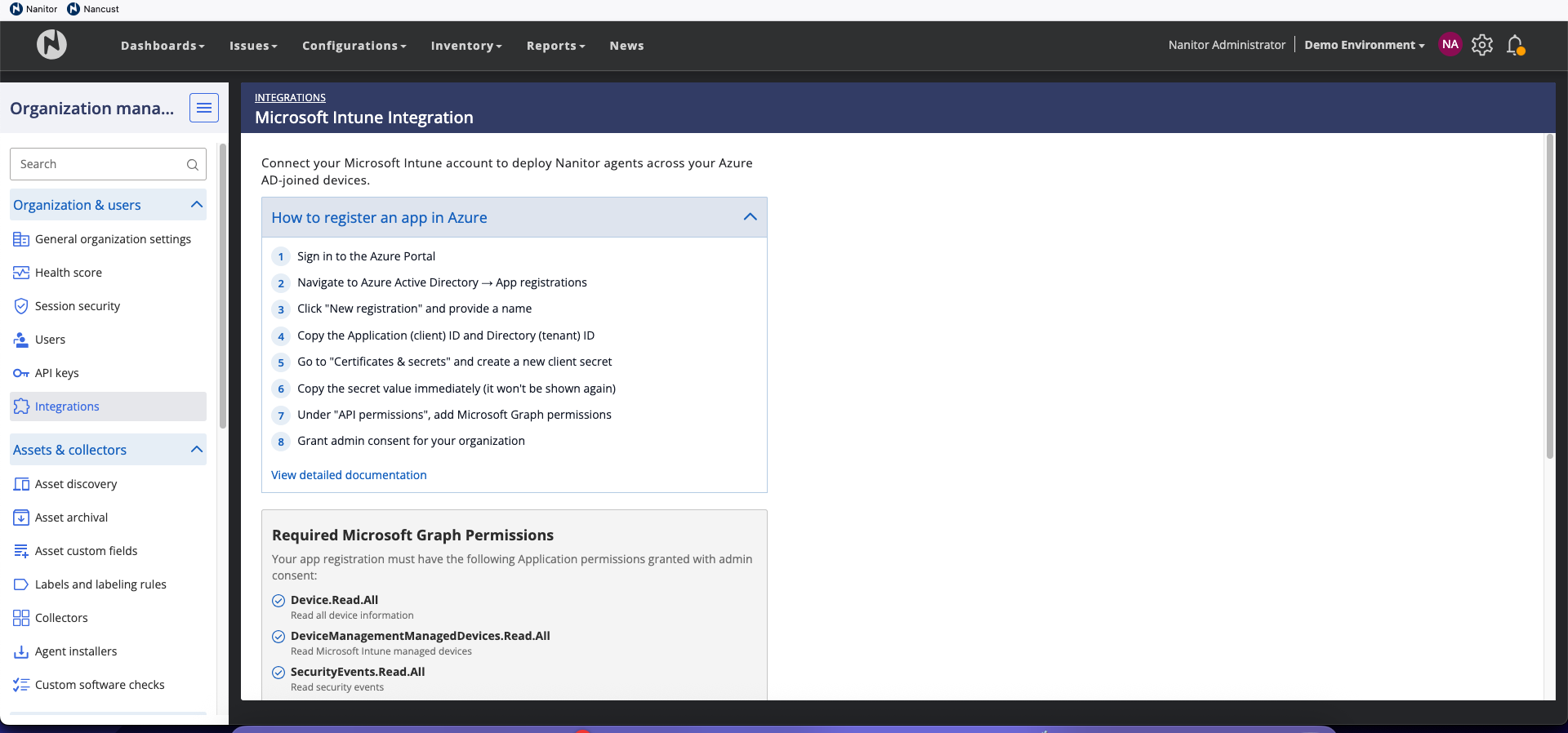
To configure the integration:
- Enter your Tenant ID from Azure
- Enter your Client ID from Azure
- Enter your Client Secret from Azure
- Click Connect
Nanitor validates the credentials by requesting an access token from Microsoft Graph. If the credentials are valid, the integration is saved. You can then check the required Graph permissions — the UI displays which permissions are granted and which are missing.
After successful connection, Nanitor begins synchronizing device data from Intune. The first sync may take several minutes depending on the number of devices.
What gets synchronized
Device data
From Intune to Nanitor:
- Device inventory (computers, servers, mobile devices)
- Device properties (hostname, serial number, operating system, OS version)
- Azure AD Device ID
- Device management state
- Compliance status and policy details
- Device check-in timestamps
Synchronization frequency: Every 6 hours (default, automatic), with manual sync available via Sync Now. Device data and compliance data are fetched together in the same sync.
Device matching
Nanitor automatically matches Intune devices to existing Nanitor assets using the following priority:
- Serial number (primary matching method)
- Azure AD Device ID (secondary)
- MAC address
- Hostname (fallback)
When a match is found, the Nanitor asset is enriched with Intune data. Devices without matches can be imported as new assets if asset discovery is enabled for the organization.
Asset discovery
Asset discovery from Intune can be enabled or disabled per organization. When enabled, Intune devices that don't match any existing Nanitor asset are imported as new assets with Microsoft Intune as the discovery source.
Compliance visibility
Device detail
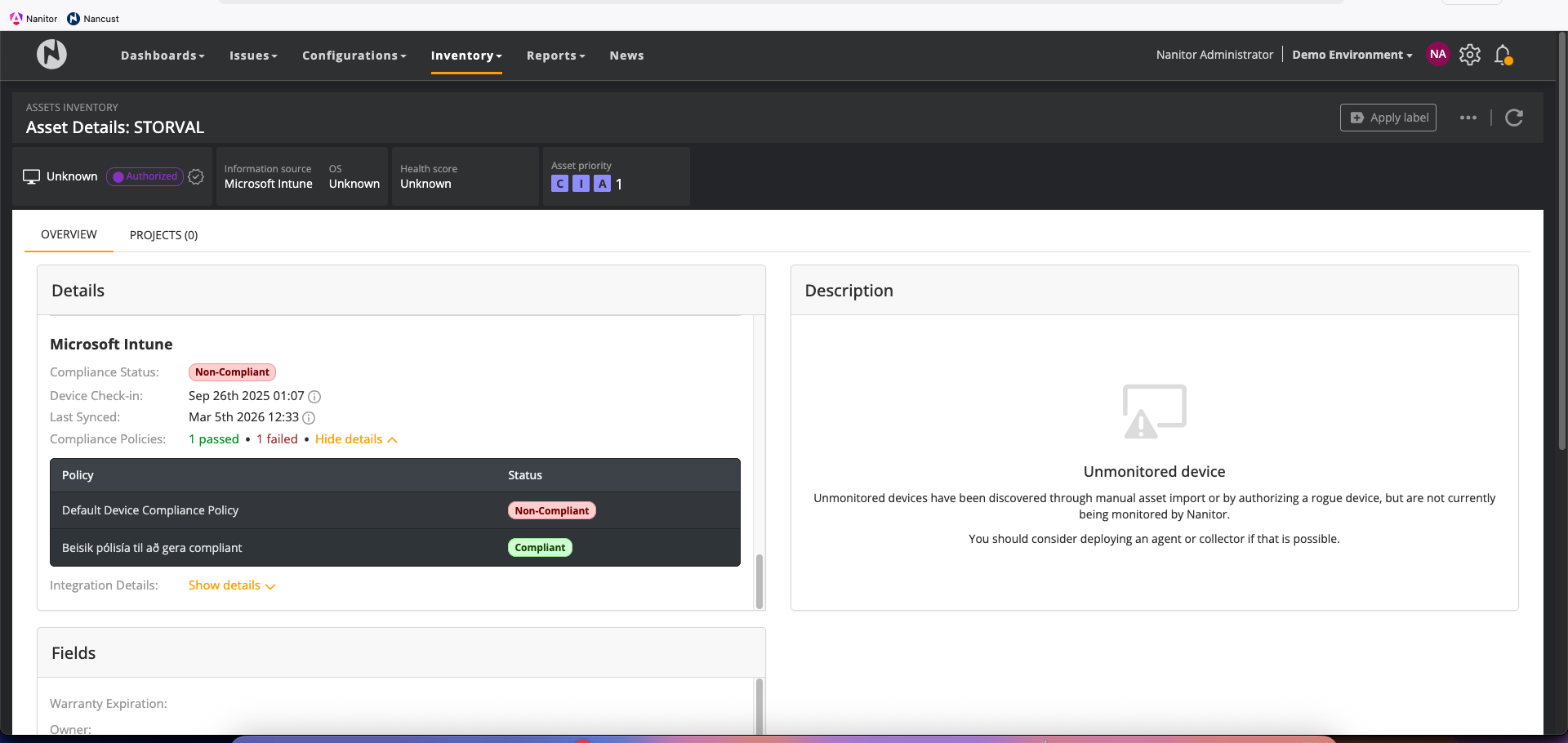
On the Device Overview tab, a collapsible Microsoft Intune section displays:
- Compliance status badge — Compliant, Non-Compliant, In Grace Period, or Unknown
- Device Check-in — when the device last checked in with Intune
- Last Synced — when Nanitor last fetched data from Intune
- Compliance policies — individual policy compliance details
- Integration details — match method, Intune Device ID, Azure AD Device ID
Timestamps explained
Device Check-in is when the device itself last reported to Intune. Last Synced is when Nanitor last retrieved data from the Intune API. These may differ depending on sync schedules.
Asset Inventory
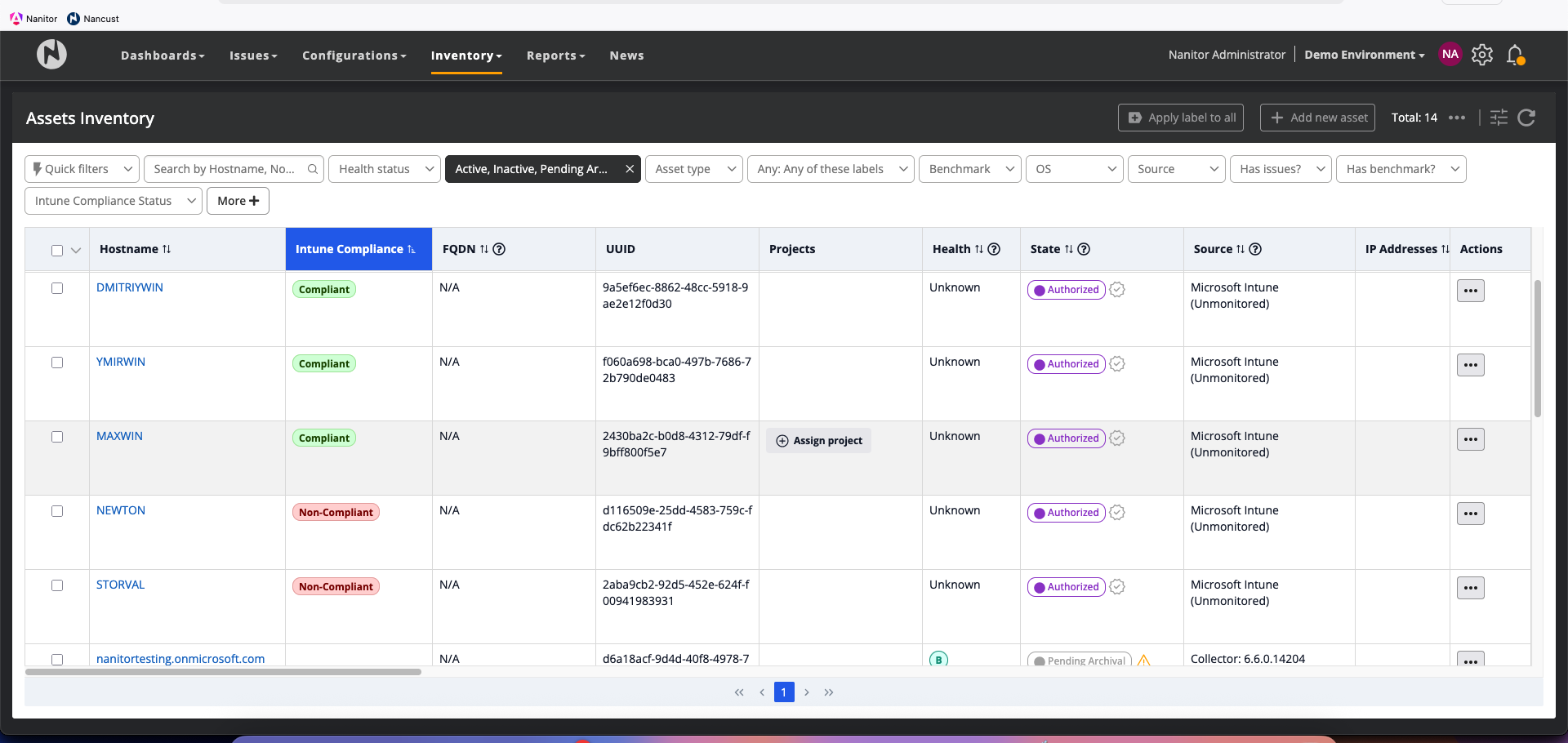
An optional Intune Compliance column is available in the Asset Inventory. This column can be added via column customization and supports filtering and sorting, allowing you to quickly identify non-compliant devices across your fleet.
Monitoring and troubleshooting
Connection status
Navigate to Organization Management → Integrations → Microsoft Intune.
The page displays:
- Connection status (Connected / Failed / Needs Re-auth)
- Last successful sync (timestamp)
- Permission status (granted vs. missing permissions)
Common issues
Problem: Connection fails with "Invalid credentials" Solution: Verify the Tenant ID, Client ID, and Client Secret are correct. Ensure there are no extra spaces. If the secret has expired, create a new one in Azure.
Problem: "Missing permissions" warning Solution: Verify all required permissions are added in Azure and that admin consent has been granted. The Nanitor UI shows which specific permissions are missing.
Problem: Devices not appearing after sync Solution: Check that asset discovery is enabled for the organization. Verify that devices are enrolled and active in Intune. Try triggering a manual sync.
Problem: Compliance status shows "Unknown"
Solution: The device may not have checked in with Intune recently, or compliance policies may not be assigned. Verify the device's compliance state in the Intune portal. Note that less common Intune states such as conflict, error, and configManager are also grouped under "Unknown."
Problem: Connection status shows "Needs Re-auth" Solution: The Azure client secret may have expired. Create a new client secret in Azure and update the credentials in Nanitor.
Removing the integration
To disconnect the Intune integration, navigate to Organization Management → Integrations → Microsoft Intune and click Remove Integration. You will be asked to confirm. Removing the integration stops all synchronization. Devices previously imported from Intune remain in your asset inventory but will no longer receive Intune compliance updates.
Support
If you continue experiencing issues, contact Nanitor Support with:
- Your Nanitor organization ID
- Screenshot of any error messages
- Timestamp when the issue occurred
- Number of devices in Intune vs. number synced to Nanitor