Custom Software Checks
Custom Software Checks allow you to extend Nanitor's Software Inventory by defining custom detection rules for processes, files, or directories. This feature is particularly useful for detecting portable applications, rogue software, or legacy applications that may not appear in standard operating system software inventories.
Overview
Custom Software Checks enable you to:
- Detect processes: Identify running processes by name, command-line patterns, or binary hash
- Detect files and directories: Find specific files or directories using exact paths or pattern matching
- Target specific assets: Apply checks to all assets, specific asset types, or assets with particular labels
- Integrate with Software Inventory: All matches appear in the Software Inventory alongside standard software detections
- Use in policies: Custom Software Check results can be whitelisted or blacklisted just like standard software items
Accessing Custom Software Checks
Navigate to Organization Management → Assets & collectors → Custom Software Checks.
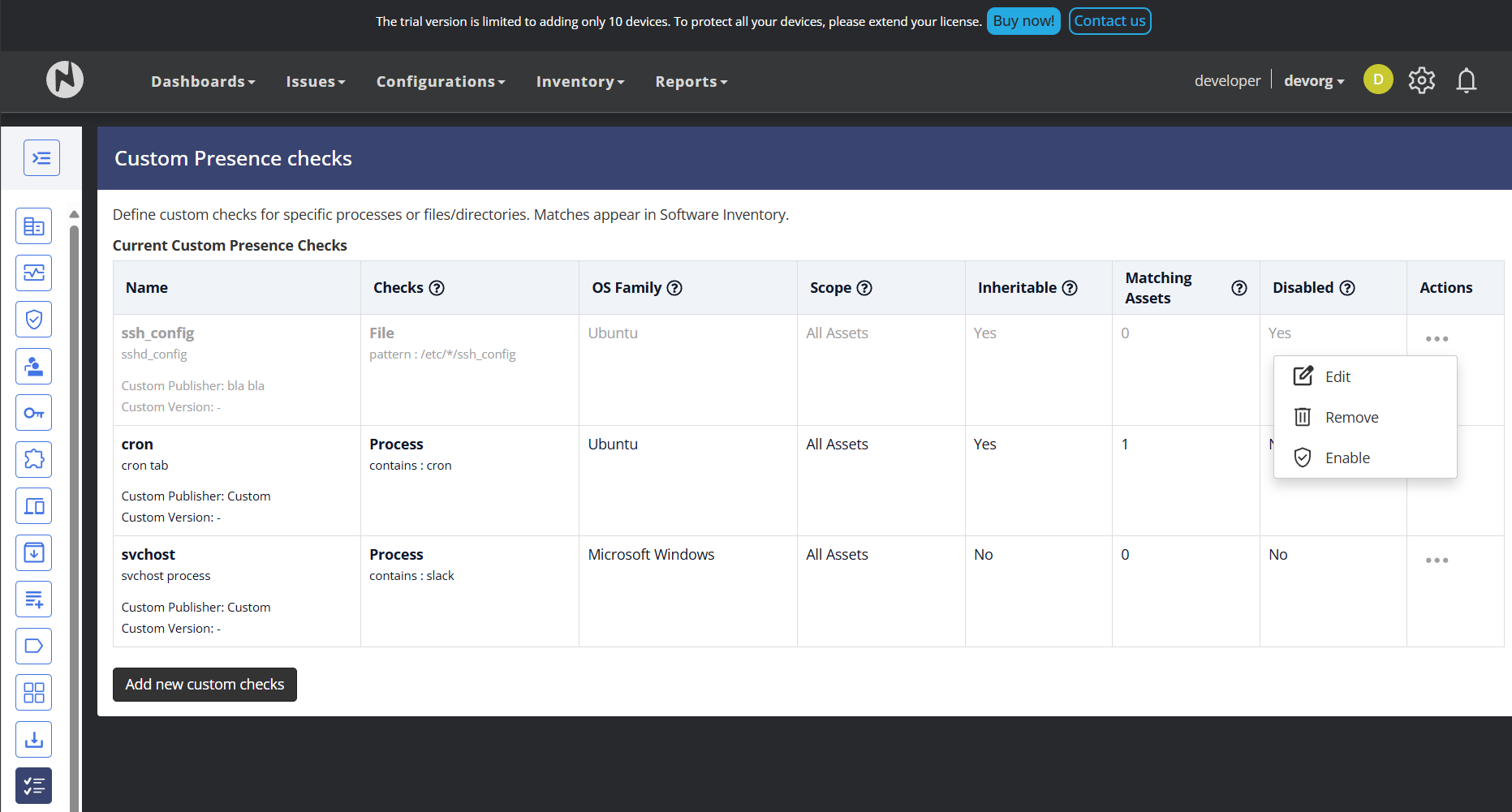
If you haven't created any Custom Software Checks yet, you'll see an empty state with instructions to get started:
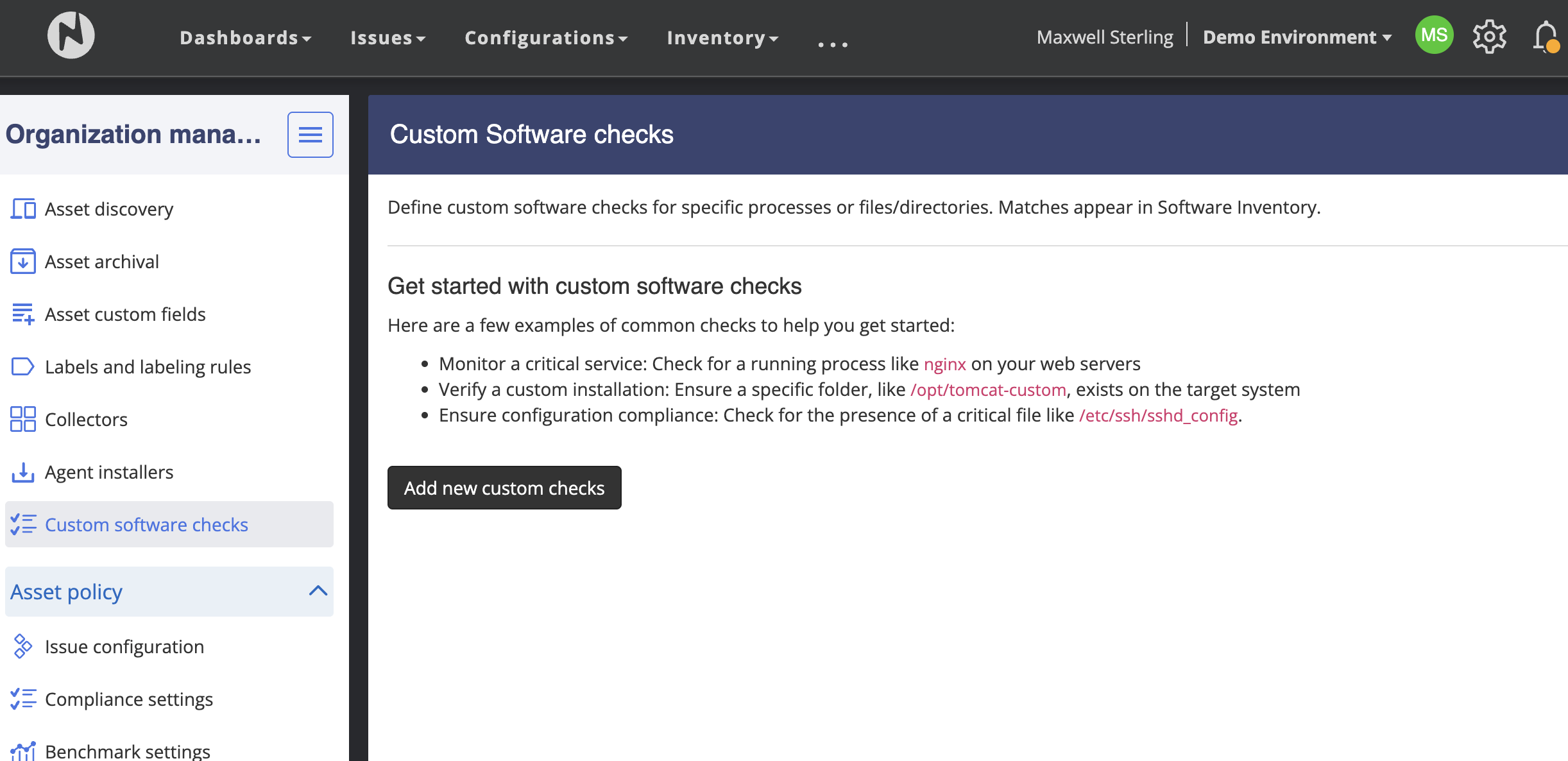
Creating a Custom Software Check
To create a new Custom Software Check:
- Click Create Custom Software Check on the Custom Software Checks page
- Configure the following settings in the dialog:
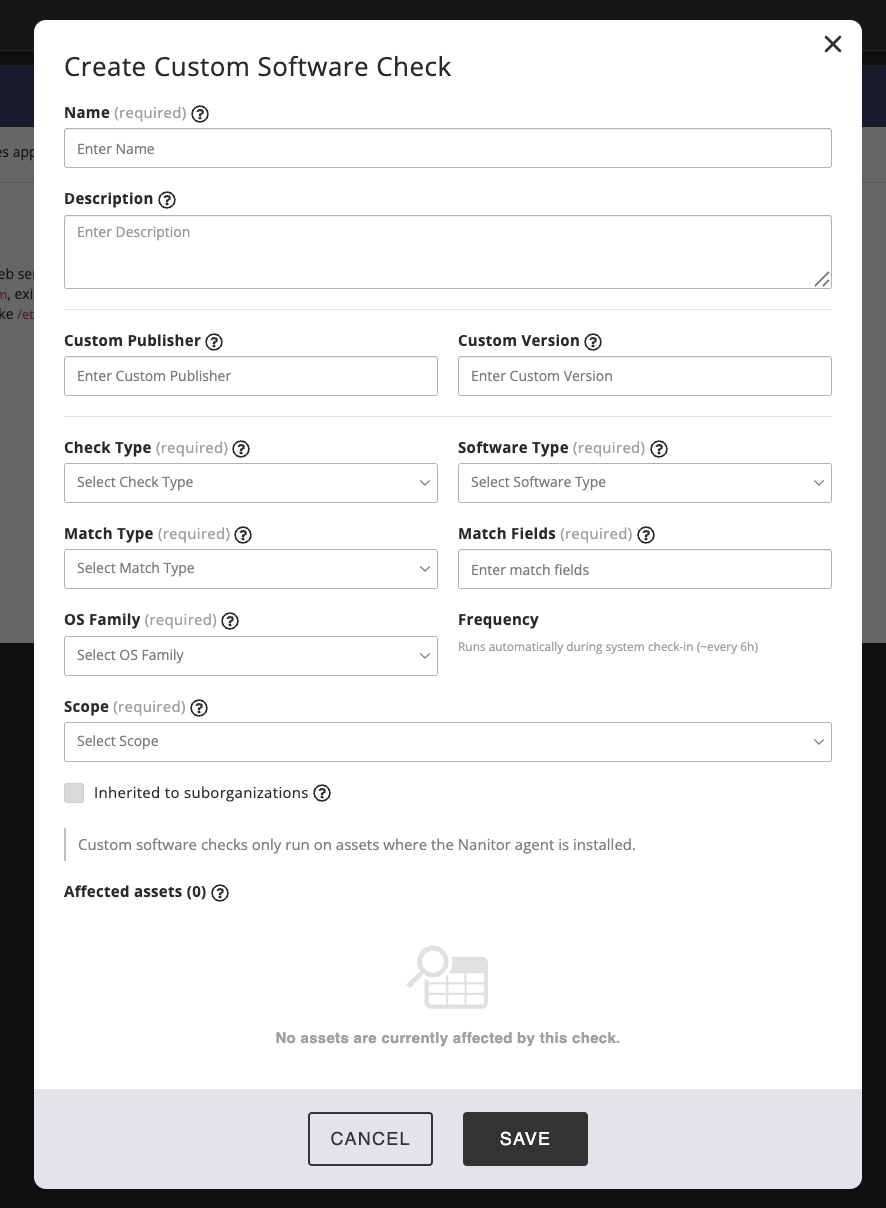
Basic Information - Name (required): A descriptive name for the check (e.g., "Cron Process Check") - Description: Optional description explaining the purpose of the check - Custom Publisher: Custom publisher name (optional, defaults to "Custom" if not specified) - Custom Version: Custom version string (optional)
Check Configuration
- Check Type (required): Choose from:
- Process: Detect running processes by name, command-line pattern, or binary hash
- File: Detect specific files by path or pattern
- Directory: Detect directories by path or pattern
- Software Type (required): Select Application or OS
- Match Type (required): Choose between:
- Exact: Match the exact value
- Contains: Match if the value contains the specified string
- Pattern: Use pattern matching (supports glob patterns)
- Match Fields (required): Enter the process name, file path, or directory path to check for
- For Windows: Use full paths like C:\Program Files\Application\app.exe
- For Linux/macOS: Use paths like /usr/bin/application or /opt/custom-app/
Targeting - OS Family (required): Select one or more operating systems (Windows, Linux, macOS) - Frequency: Runs automatically during system check-in (approximately every 6 hours) - Scope (required): Choose where to apply the check: - All assets: Apply to all assets in the organization - Asset Type: Apply to specific asset types (e.g., Servers, Laptops) - Specific Label: Apply only to assets with a particular label - Inherited to suborganizations: Check this to apply the check to assets in suborganizations as well
The dialog also shows Affected assets at the bottom, indicating how many assets will be checked based on your scope selection.
- Click Save to create the check
How Custom Software Checks Work
- Agent Execution: When a Nanitor agent checks in (approximately every 6 hours), it receives the Custom Software Check definitions from the server
- Detection: The agent runs the configured checks during its system information check-in
- Reporting: Matches are sent back to the server and normalized into Software Inventory items
- Display: Results appear in Software Inventory with:
- Source: Tagged as "Custom Software Check" with a visible pill showing the check name
- Type: Custom – Process, Custom – File, or Custom – Directory
- Publisher: The publisher name you specified (or "Custom" by default)
- Title: The name of the Custom Software Check
- Version: The version you specified or metadata from the detected item
Viewing Results
Custom Software Check results appear in multiple places in Nanitor:
On Individual Assets
View results for a specific asset:
- Navigate to Assets → Select an asset
- Click the Software tab
- Custom Software Check results appear in the software list with a Source column showing the check name (e.g., "Custom Software Check: Cron Process Check")
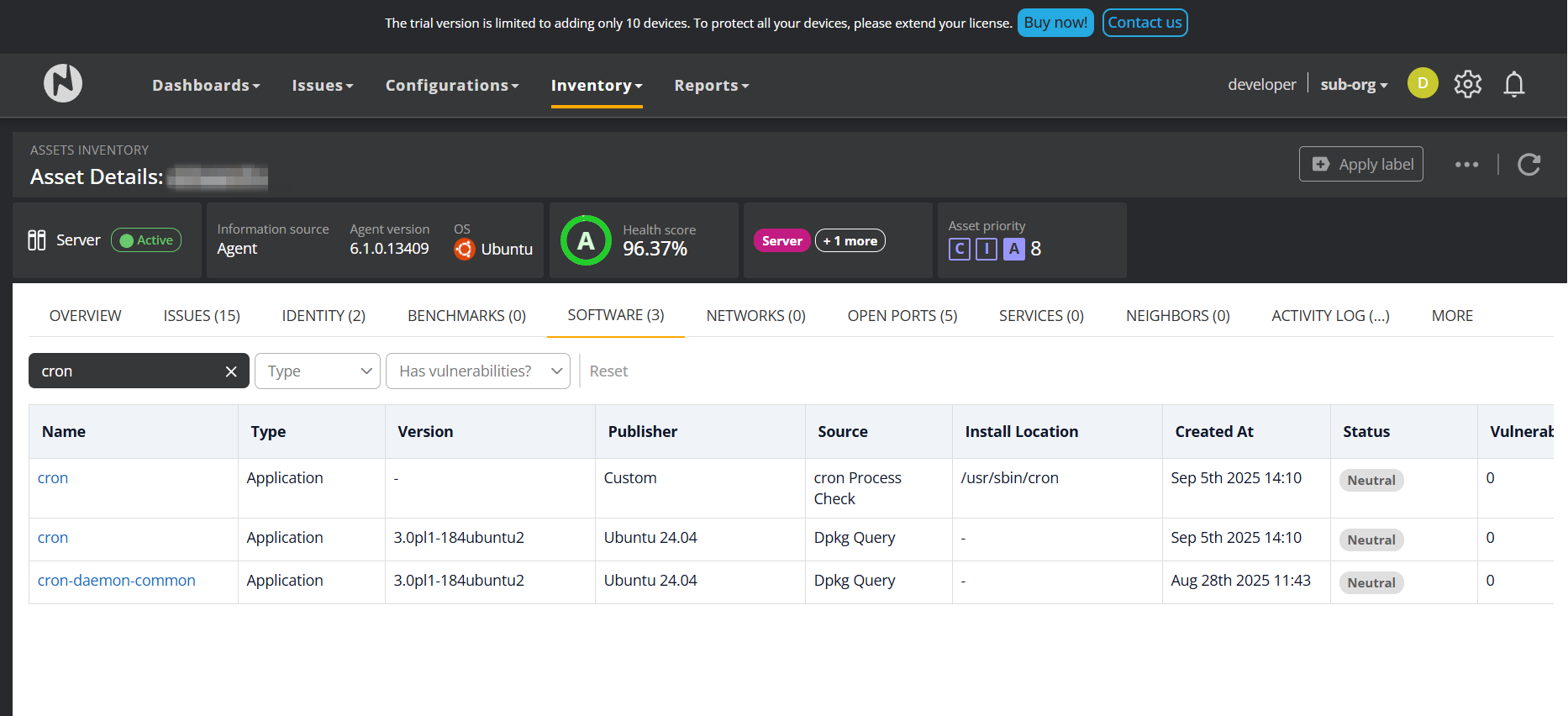
In Software Inventory List
View all Custom Software Check results across all assets:
- Navigate to Inventory → Software
- Use the Source filter and select "Custom Software Check" to view only custom check results
- The source column displays a pill showing the check name
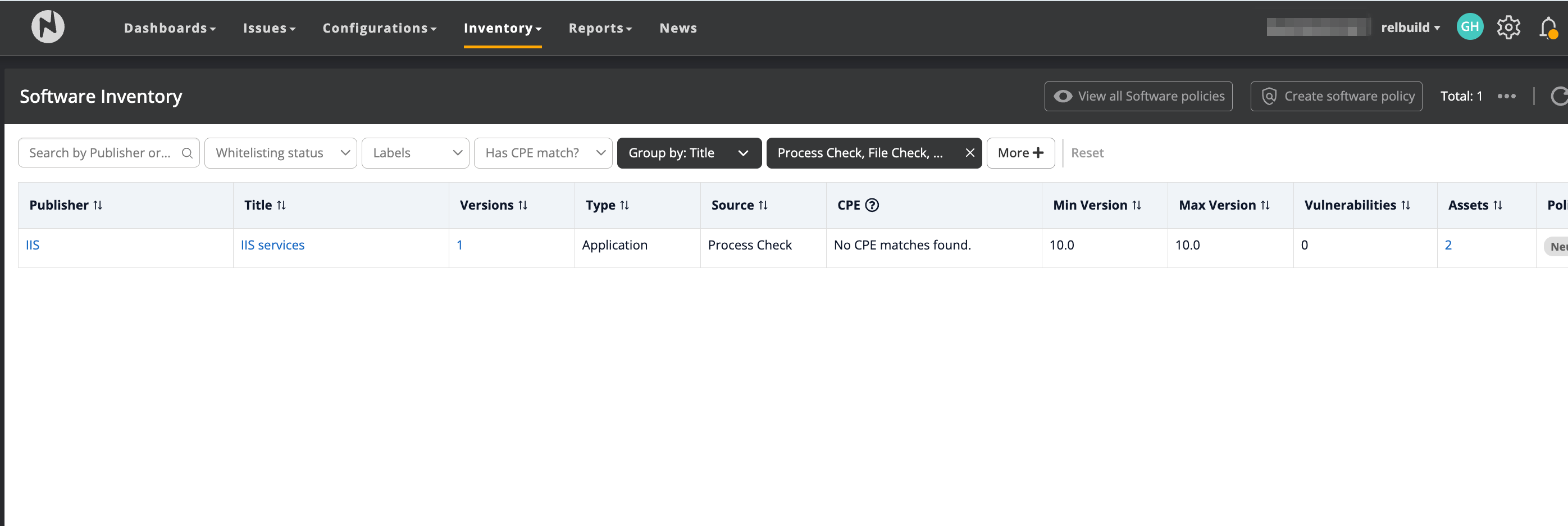
Managing Custom Software Checks
From the Custom Software Checks page, you can:
- View all checks: See a list of all configured checks with the number of matched devices
- Edit: Update check configuration, targeting, or match criteria
- Enable/Disable: Temporarily disable a check without deleting it
- Delete: Remove a check (this will also remove its results from Software Inventory)
All actions (create, update, enable, disable, delete) are logged in the Activity Log for audit compliance.
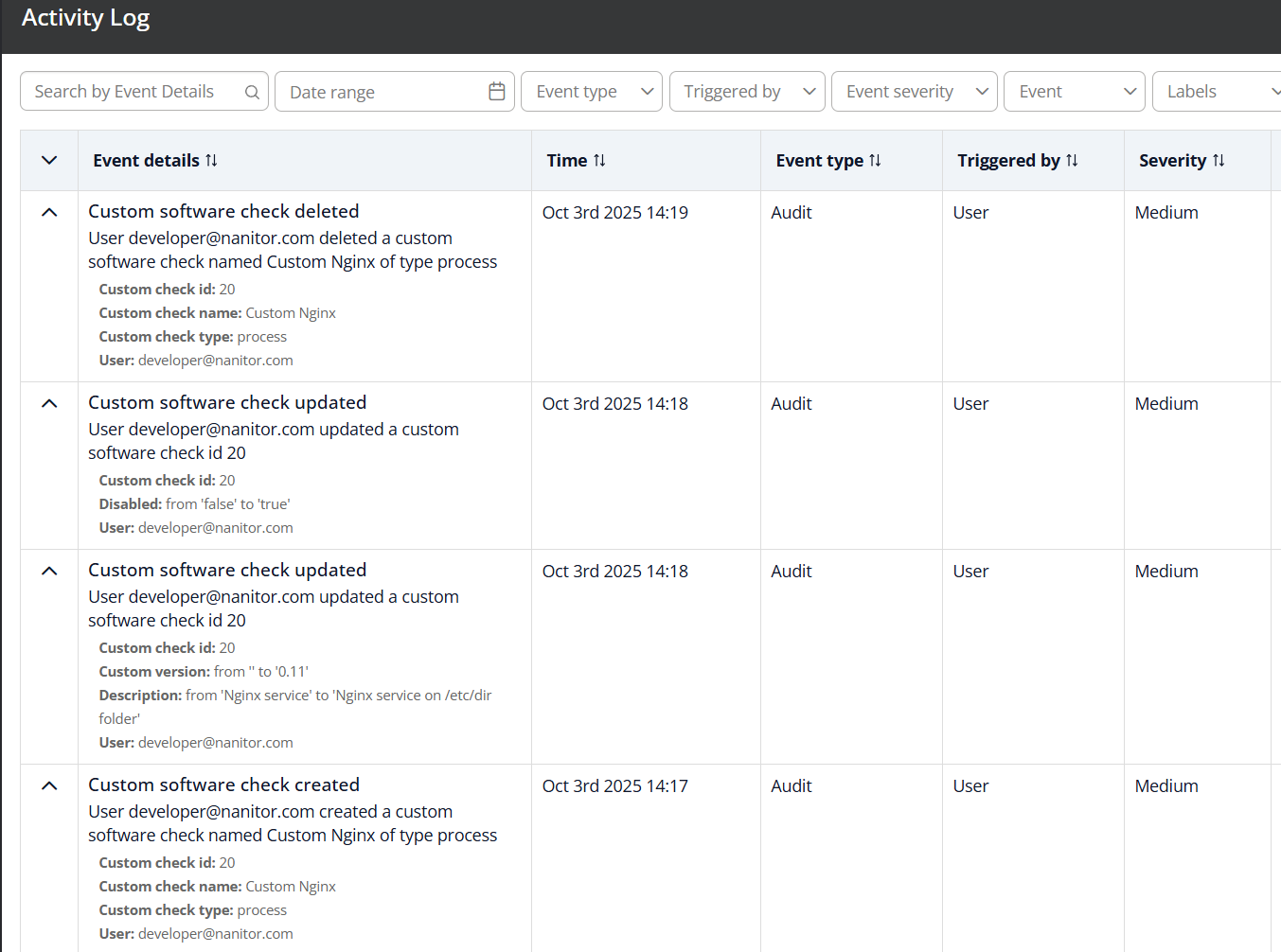
Using Custom Software Checks in Policies
Custom Software Check results integrate seamlessly with Nanitor's software policy system:
- Navigate to Organization Management → Asset policy → Issue configuration
- Configure software issue settings as you would for standard software
- Custom Software Check results will be subject to the same whitelist/blacklist rules
- Issues and alerts will be created for blacklisted or non-whitelisted custom check results
Best Practices
- Use specific paths: For file and directory checks, use specific paths rather than broad patterns to avoid performance issues
- Target appropriately: Use asset labels or types to limit checks to relevant assets
- Name clearly: Use descriptive names that make it easy to identify what each check detects
- Test before deploying: Create a check with a limited scope first, verify it works correctly, then expand to more assets
- Monitor results: Regularly review Custom Software Check results in Software Inventory to ensure they're detecting what you expect
Important Notes
- Custom Software Checks only run on assets where the Nanitor agent is installed
- Checks run during regular agent check-ins (approximately every 6 hours)
- File and directory checks use cached file system data, so it's recommended to use paths that have existed on the system for some time
- For process checks, ensure the process is running when you want to verify detection
- Results may take 10 minutes or more to appear after creating a check, depending on agent check-in timing
- You can trigger an immediate check by using the "Request recheck" button on an asset's detail page
Related Features
- Software Inventory: View all software detected on your assets
- Software Whitelisting and Blacklisting: Configure policies for software items
- Activity Log: View audit logs for Custom Software Check actions
- Asset Labels: Use labels to target Custom Software Checks to specific asset groups