Authentication options
To access Nanitor instance, you need to login to your account. On a fresh install, you will be provided with a username and password to be entered to authenticate yourself against the Nanitor instance. You can add as many users to your Nanitor instance as needed. Nanitor offers various ways for authentication: * Local authentication. * SAML authentication. * Active Directory authentication.
In this guide, you will be walked through setting up Nanitor along with your identity provider for both SAML and AD and how to manage users locally if you prefer Nanitor managing all your user base and their privileges. When you have an identity provider configured, the users will use the SAML link to access Nanitor. You can have several identity providers and use local authentication alongside your identity provider.
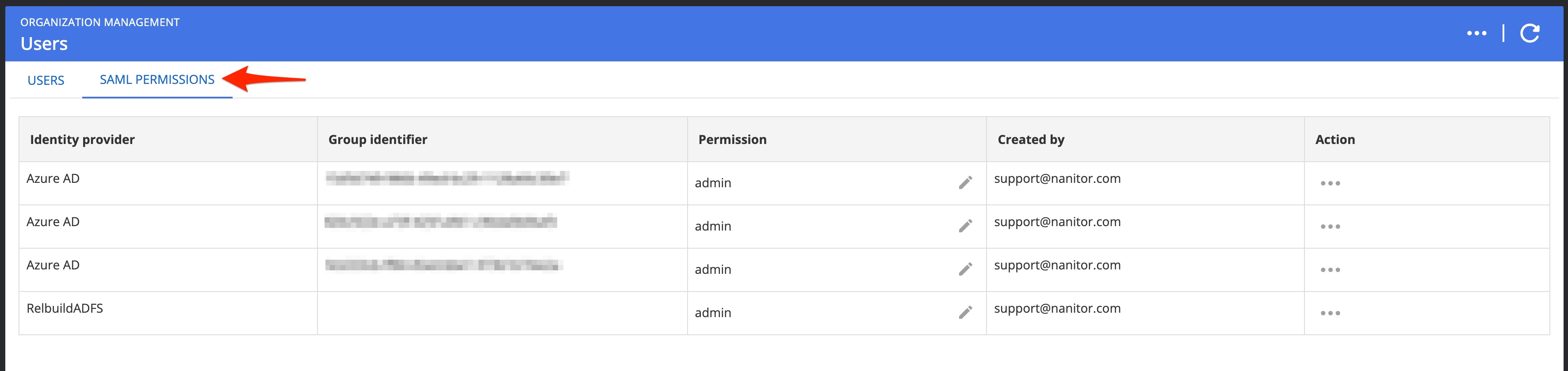
To see a list of installed identity providers navigate to Organization Management → Users and switch to the SAML permissions tab.
Local authentication
Local authentication is where Nanitor stores and verifies the identity through the use of an email address and password and optionally or mandatorily a second-factor time-based code (2FA). To manage the local user base, you need to be a Nanitor administrator. Navigate to the administration menu.
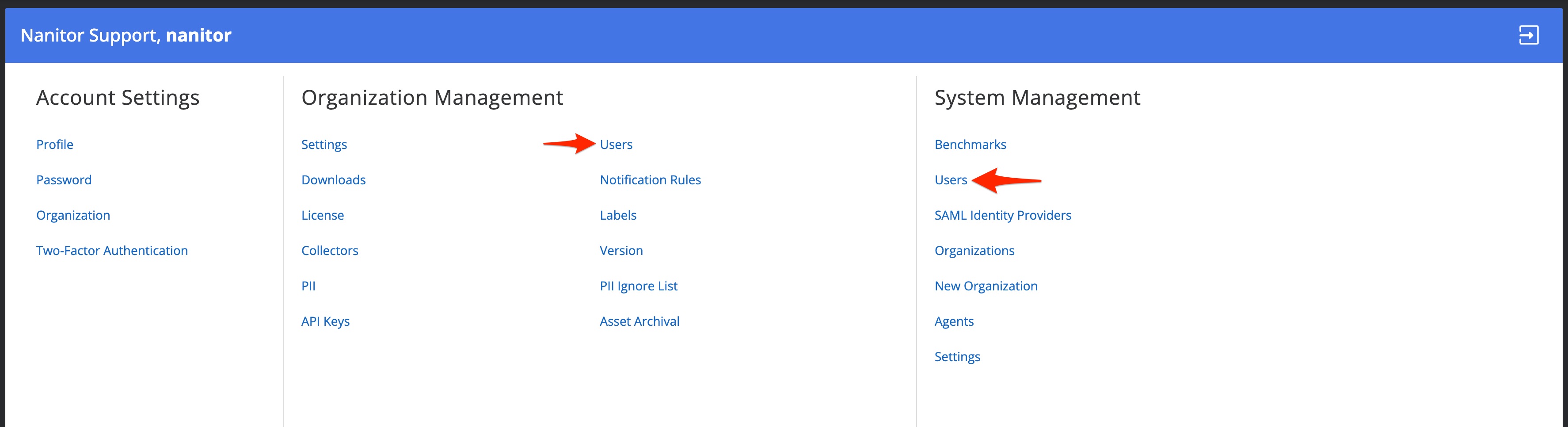 To create new users, view existing users, and delete a user click on Users under Organization Management and to view all registered users and delete a local user you navigate to Users under System Management. For further instructions on how to create a new local user refer to the knowledge base article.
To log locally into Nanitor: 1. Enter the email on the login screen and click Sign In. 1. On the next screen, enter the password and click Sign In.
Mandatory Two-Factor Authentication
System Administrators can enable a global security setting that requires all users with local authentication to use two-factor authentication. When this setting is enabled, users will be prompted to configure 2FA on their next login if they haven't already done so. For more information, see System management → Security settings.
SAML authentication
SAML (Security Assertion Markup Language) authentication is a widely used standard for exchanging authentication and authorization data between applications, in particular, between an identity provider (IdP) and a service provider (SP) for web-based applications (Nanitor in our case). It enables a Single Sign-On (SSO) functionality, allowing users to authenticate to Nanitor with an identity provider available at your organization. An SSO functionality increases the user experience with Nanitor. Nanitor works with any SAML 2.0 compliant identity provider. The following providers have been tested and have dedicated setup guides in our knowledge base:
- Microsoft Entra ID (formerly Azure Active Directory)
- Active Directory Federation Services (ADFS)
- FortiAuthenticator
- Okta
To set up a SAML provider contact our support team or follow the instructions from our knowledge base.
Exempt from Force 2FA
Users who authenticate via SAML are exempt from Nanitor's global Force 2FA setting, as multi-factor authentication is managed by your organization's identity provider.
Inviting SAML Users
Once a SAML provider is set up and SAML permissions are defined, you need to invite users:
-
Open the SAML permissions tab on the Users page under the Organization management .
-
Click Invite users.
-
Do one of the following:
-
Copy the link displayed in the opened window and send it directly to users.
-
Enter users' emails and then click Invite users.
-
-
The user must open the link received via email or sent to them in another way and proceed with account activating using their SAML provider credentials.
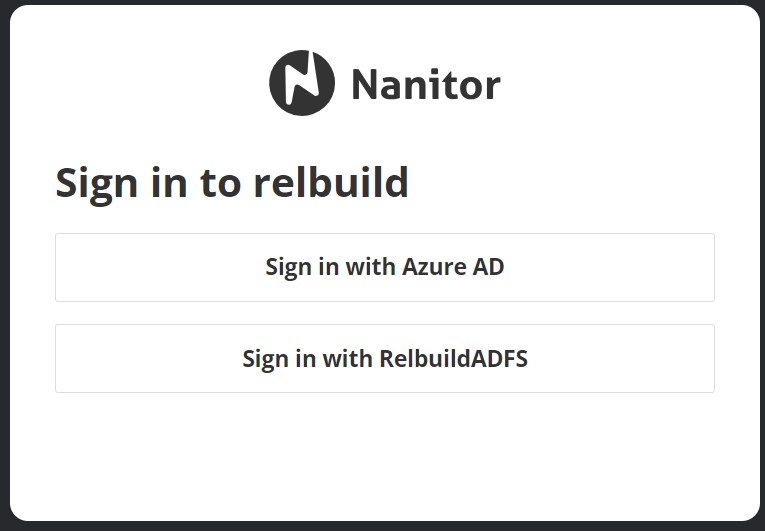
- Once the account is activated, the users will have to enter their email when logging into Nanitor and then they will be automatically taken to the SAML provider authentication screen.
Active Directory (AD) authentication
Windows Active Directory (AD) can be used with a Windows Domain Controller to authenticate users. To set up and configure an AD connection, contact our support team or follow the instructions from our knowledge base.
Exempt from Force 2FA
Users who authenticate via Active Directory domain login are exempt from Nanitor's global Force 2FA setting, as authentication is managed by your domain controller.
Brute-force login protection
Nanitor limits failed password sign-in attempts. Available from Nanitor 7.3.0.
Without Cloudflare Turnstile, which is not configured by default, 10 failed attempts from the same IP address or against the same account block further attempts until 15 minutes have passed since the last failed attempt. Failed attempts keep adding up until 15 minutes pass without one. Nanitor keeps one counter per IP address and one counter per account. Reaching the limit on either counter blocks the sign-in.
While a sign-in is blocked, Nanitor rejects every attempt, including one with the correct password. Rejected attempts do not extend the wait. The sign-in page shows the message "Too many failed attempts. Try again in up to 15 minutes." The number of minutes follows the configured time window. A successful sign-in resets the counters.
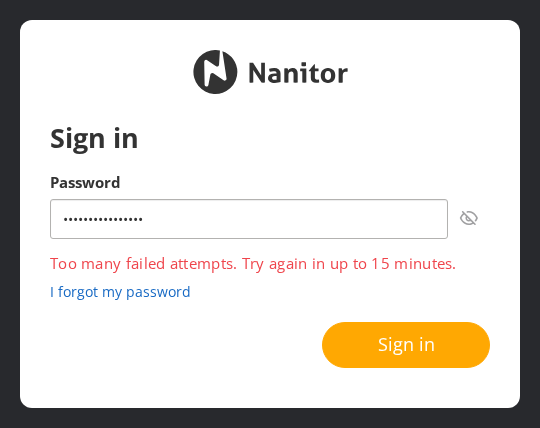
For help with a blocked sign-in, see Locked out: sign-in blocked after too many failed attempts.
Cloudflare Turnstile CAPTCHA
Turnstile is off by default. It is enabled when a system administrator sets secret_key and site_key in the [turnstile] section of nanitor_common.ini on the Nanitor server. Set both keys: with only secret_key set, Nanitor requires a CAPTCHA but the sign-in page cannot show it, so users cannot sign in once a CAPTCHA is required. There is no setting for this in the Nanitor UI, and it applies to the whole instance, not to a single organization. Contact our support team if you would like Turnstile enabled.
With Turnstile configured, a CAPTCHA is required after 3 failed attempts, and the Sign in button stays disabled until it is solved. Solving the CAPTCHA reduces the failed attempt count to one, not to zero.
What counts as a failed attempt
The following count towards the limit:
- A wrong password.
- An unknown user.
- An inactive account.
- A failed Active Directory (domain) sign-in.
- An email lookup on the sign-in page for an email address that is not registered in Nanitor.
An email lookup for a registered email address does not count. SAML single sign-on sign-ins are not counted as failed attempts. The email step of the sign-in page is also rate limited, so when the IP address or the account is blocked, users who sign in with SAML single sign-on are blocked at that step too.
A sign-in is recorded as successful after the password step, before two-factor authentication. An incorrect two-factor code does not count toward the block and is not recorded in the Activity Log.
System API requests that use an API key are not counted and are not blocked.
Users behind one IP address share a counter
All users who reach Nanitor through the same IP address, for example through a NAT gateway or a proxy, share one IP counter. Failed attempts from any of these users count towards the same limit.
If you place your own load balancer or reverse proxy in front of the Nanitor server, it must pass the client IP address in the X-Forwarded-For or X-Real-IP header. If it does not, Nanitor sees all sign-in attempts as coming from the proxy's IP address, so failed attempts by any user count toward one shared block.
Anyone can block an account
Without Turnstile, anyone who knows a user's email address can keep that account blocked by sending failed attempts, because there is one counter per account. This includes users who sign in with single sign-on or Active Directory. Plan another way to sign in for critical administrator accounts.
Activity Log
Nanitor records sign-ins in the Activity Log:
- Successful sign-ins, both local and Active Directory.
- Failed local sign-ins of existing users.
Each event is recorded in every organization the user is a member of, including organizations the user can access through an inheritable role in a parent organization. Sign-ins of users with the Manage System permission are recorded in the Activity Log of every organization.
The following are not recorded: SAML single sign-on sign-ins, failed Active Directory sign-ins, attempts for users that do not exist, and attempts rejected because the sign-in is blocked or a CAPTCHA is required. The Activity Log is therefore not a complete record of sign-in attempts. For Active Directory and SAML users, use your domain controller or identity provider logs.
Configuring the limit on-premises
On-premises administrators can change the limit and the time window:
- Open
/etc/nanitor/nanitor_common.inion the Nanitor server. -
Add a
[bruteforce]section. The section is not present in the installed file.[bruteforce] max_failures = 10 attempt_ttl = 900max_failuresis the number of failed attempts that triggers the block.attempt_ttlis the time in seconds after the last failed attempt at which the counters reset. It sets both how long a block lasts and how long failed attempts keep adding up.
-
Restart the
nanitor-ui-apiservice:sudo systemctl restart nanitor-ui-api.serviceRestarting clears all counters and lifts every active block. It does not sign users out.
These settings cannot turn the protection off
A value of 0 or lower does not disable the protection. If max_failures is 0 or lower, Nanitor uses 3. If attempt_ttl is 0 or lower, Nanitor uses 3600 seconds (1 hour). Both are stricter than the defaults, so use positive values.
If Turnstile is configured and the resulting max_failures is 3 or lower, Nanitor uses 8.